Send a Fax from My Computer Without a Fax Machine
So, you need to send a fax from your computer? The simplest way by far is to use an online fax service. These platforms let you upload a digital document and send it right over the internet—no fax machine, phone line, or special software needed. It's really as easy as sending an email.
Why Sending a Fax from Your Computer Makes Sense
If you picture a clunky, noisy machine humming in an office corner when you think of faxing, you’re not alone. For a long time, that was the only way. But even today, industries like healthcare, law, and real estate still rely on fax for transmitting important documents, even though the hardware itself feels like a relic.
This is where online fax services come in. Instead of running to a print shop and paying upwards of $2.00 per page to use their public machine, you can handle the whole thing from your laptop. It’s a huge step up in convenience, bringing an old-school technology into your modern workflow.
The Modern Alternative to Traditional Faxing
Sending a fax from your computer isn't just about ditching old hardware. It’s about switching to a smarter, more secure, and cheaper method, especially if you only send faxes every now and then.
This digital approach gets rid of all the classic frustrations of using a real fax machine:
- No More Busy Signals: Online services usually retry sending automatically if the line is busy. You don't have to stand there and redial.
- Zero Maintenance Costs: Forget about buying pricey ink, toner, or special thermal paper.
- Better Security: Your sensitive documents aren't left sitting in a public tray for anyone to see. They’re sent directly and securely.
- A Clear Digital Trail: You get a digital confirmation receipt sent straight to your email, giving you a solid record that your fax was delivered.
The real win here is simplicity. Online platforms act as a bridge between the digital world and the analog one, converting your files into a format that a traditional fax machine can receive. You get to stick with the tools you already know and use.
Ultimately, knowing how to send a fax from your computer means you can tackle this task in a few minutes, from absolutely anywhere you have an internet connection. It’s the perfect modern fix for a surprisingly persistent communication need.
Getting Your Documents Ready for Digital Faxing
Before you can fire off a fax from your computer, you’ve got to get your document in order. While the best online fax services are pretty forgiving, getting the file format right is the single most important thing you can do to avoid a failed transmission. It's what guarantees your document looks exactly as intended when it prints out on the other end.
Think of it like this: you wouldn't just toss clothes into a suitcase and hope for the best. You’d fold them neatly so they arrive looking good. Preparing your file for faxing works the same way.
Choosing the Best File Format
Most services, including SendItFax, can handle common file types like DOC and DOCX just fine. But if you want to be certain everything goes smoothly, the undisputed champion for digital faxing is PDF (Portable Document Format). There are a couple of really practical reasons for this.
First off, a PDF locks in your formatting completely. All your fonts, images, and page layouts stay exactly where you put them, no matter what software or machine the recipient has. This is absolutely critical for official documents like contracts or invoices where every detail matters. PDFs also tend to be smaller files, which means they transmit faster and more reliably.
Pro Tip: Make it a habit to always save or export your final document as a PDF before you upload it. This simple step single-handedly prevents over 90% of potential formatting glitches and ensures what you see is what they get.
Creating a PDF is incredibly simple with the software you already use:
- From Microsoft Word: Just go to
File > Save As, then choose PDF from the format dropdown. - From Google Docs: Click
File > Download > PDF Document (.pdf).
That's it. Taking five seconds to do this will make the whole process of sending a fax from your computer feel much more reliable.
What About Physical Papers?
So what happens when the document you need to send is a physical piece of paper, like a signed form or an important receipt? You don't need to run out and find a scanner. Your smartphone is more than capable.
Apps like Adobe Scan or even the built-in Notes app on an iPhone can turn your phone's camera into a high-quality scanner. The key is to lay the document flat in a well-lit room to avoid shadows. You want the text to be sharp and clear, because a blurry scan will almost certainly result in an illegible fax on the other end.
By making sure your files are properly prepared—whether they start on your computer or as a piece of paper—you're setting yourself up for a successful send. This groundwork ensures your fax arrives looking professional, clear, and error-free. For a closer look at the entire process, our guide on how to send a fax online has even more tips. A little prep work goes a long way.
Your First Online Fax: A Practical Walkthrough
Alright, let's walk through sending your first fax from your computer. It might sound a bit dated, but it's often a necessary step, and thankfully, modern tools make it incredibly simple. We’ll use a service like SendItFax as our example because it’s built for exactly this—sending a quick fax without the hassle of signing up for an account.
It’s easy to forget just how big a deal the fax machine was. The shift from clunky hardware to computer-based faxing was a game-changer. Back in the '80s, fax machines exploded in popularity, jumping from 30,000 in the U.S. in 1973 to a staggering 4 million by 1989, all thanks to the first computer fax board that hit the market in 1985. We've come a long way since then.
Getting Started on the Website
When you land on an online fax service, you'll find a clean, straightforward form that looks a lot like sending an email. The design is deliberately minimalist to get you from point A to point B as fast as possible.
You'll typically see three main sections:
- Sender Info: This is where you put your name and email.
- Recipient Info: The name and fax number of the person you're sending to.
- File Upload: A simple button to attach your document.
The whole setup is designed to be intuitive, so you can focus on getting the fax sent without a learning curve.
Free vs. Paid: Which One Do You Need?
Most services give you a choice between a free and a low-cost paid option. With SendItFax, the free version is perfect for a one-off task. You can send up to three pages plus a cover sheet, which is great for things like a signed permission slip or a simple form. The only catch is a small service branding mark on the cover page, which usually isn't a big deal for personal faxes.
If you're sending a longer document or need a more polished look, the "Almost Free" plan is the way to go. It ditches the branding, bumps the page limit to 25, and often puts your fax at the front of the line. This is the better choice for business contracts, job applications, or anything where a professional appearance matters.
A good way to think about it: the free option is like a postcard—quick, easy, and gets the job done. The paid option is like a formal letter in a sealed envelope—it offers a bit more privacy and professionalism.
Accuracy Is Everything: Filling in the Details
This is where you need to pay close attention. Start with your own information; your name is standard, but your email address is critical because that’s where the delivery confirmation will be sent.
Next, carefully enter the recipient's details. The fax number is the most important part. One wrong digit and the whole thing fails.
- For U.S. and Canadian numbers, just enter the 10-digit number, area code and all (e.g., 212-555-0123).
- Take a second to double-check. Seriously. Rereading the number before you click "send" can save you a world of frustration.
Once the contact info is locked in, you’ll attach your file. This is where that earlier prep work comes in handy. The process is pretty simple, as you can see below.
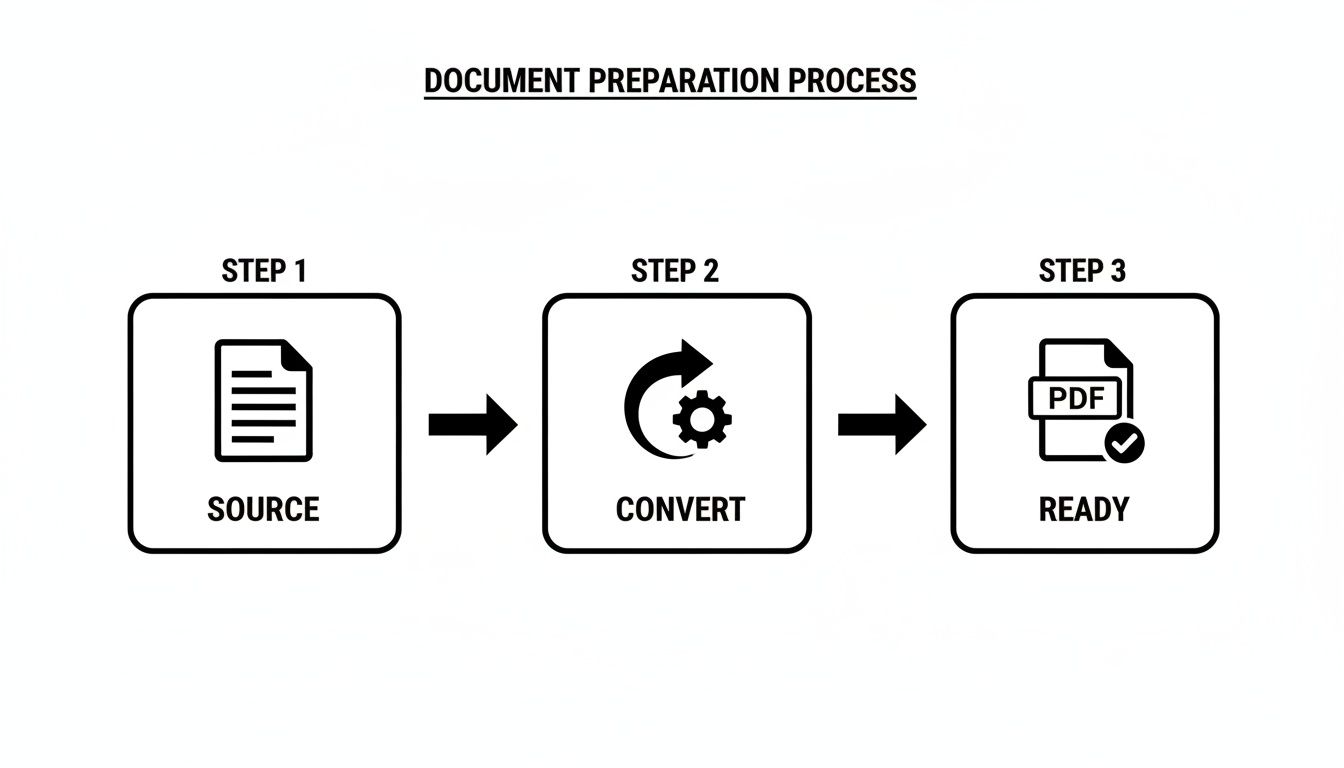
As the chart shows, converting your document to a PDF is the most reliable way to ensure it goes through without a hitch.
Don't Skip the Cover Page
The final piece of the puzzle is the cover page. While you can sometimes skip it on paid plans, I always recommend using one. It acts like the subject line of an email, immediately telling the recipient who the fax is from and what it’s about.
Just a short, clear message will do. Something like, "Attached is the signed contract for Project Alpha," or "Medical records for Jane Doe, as requested." In a busy office where one person manages all incoming faxes, that context is a lifesaver. For those who send faxes more regularly, it's also worth learning how to fax via email to make the process even smoother.
With your file attached, details double-checked, and cover page ready, you can hit send with confidence. You've just sent a fax from your computer—no noisy machine required.
Confirming Your Fax Was Delivered Successfully
So you’ve just sent a fax from your computer. Now what? The great thing about modern faxing is that you aren't left guessing whether your document made it to its destination. You get clear, immediate feedback that gives you a digital paper trail for peace of mind.
Almost as soon as your transmission is complete, you should see a confirmation pop up in your email inbox. This isn’t just a simple notification; it's your official receipt. It will show the exact time and date, the recipient's number, and, most importantly, the final delivery status. For anything important, like legal paperwork or medical records, this confirmation is your proof of delivery.
Understanding Delivery Status Notifications
Your confirmation email or the service's dashboard will use a few key terms to let you know how things went. Getting to know what these mean will help you figure out what, if anything, you need to do next.
Here’s a quick reference guide to understand the status of your sent fax and what steps to take.
Fax Status Codes and What They Mean
| Status Code | Meaning | Recommended Action |
|---|---|---|
| Delivered | Great news! Your fax was successfully received by the recipient's machine. | No action needed. Just file away the confirmation email for your records. |
| Failed | The transmission couldn't be completed, even after a few tries. | Double-check the fax number for typos. If it’s correct, make sure your file isn't corrupted and try sending again later. |
| Busy | The fax line on the other end was tied up, and the service couldn't connect. | Most services automatically retry a few times. If it still fails, give it 15-20 minutes before you try resending. |
This process is remarkably solid. The technology behind sending a fax from a computer has been fine-tuned over decades, making it incredibly fast and accurate. The dominant Group 3 standard, which has been in place since 1980, compresses page data to send a document in as little as 6 to 15 seconds over a decent internet connection. If you're curious about the technical details, you can explore the history of fax technology on edinformatics.com.
What to Do When a Fax Fails
Seeing that "Failed" status can be a little jarring, but don't worry—it’s usually an easy fix. Before you start to troubleshoot complex issues, run through a couple of simple checks.
The most common reason for a failed fax—by a huge margin—is a simple typo in the recipient's number. Always take a moment to double-check each digit before you hit send. This one small step can prevent the vast majority of delivery issues.
Once you’ve confirmed the number is spot-on, take a look at the document itself. Is the file corrupted? Is it a standard format like a PDF? Sometimes, the issue isn't on your end at all. The recipient's machine could be offline, turned off, or just out of paper. Often, the best solution is simply to wait a bit and try sending it again.
Keeping Your Sensitive Documents Secure
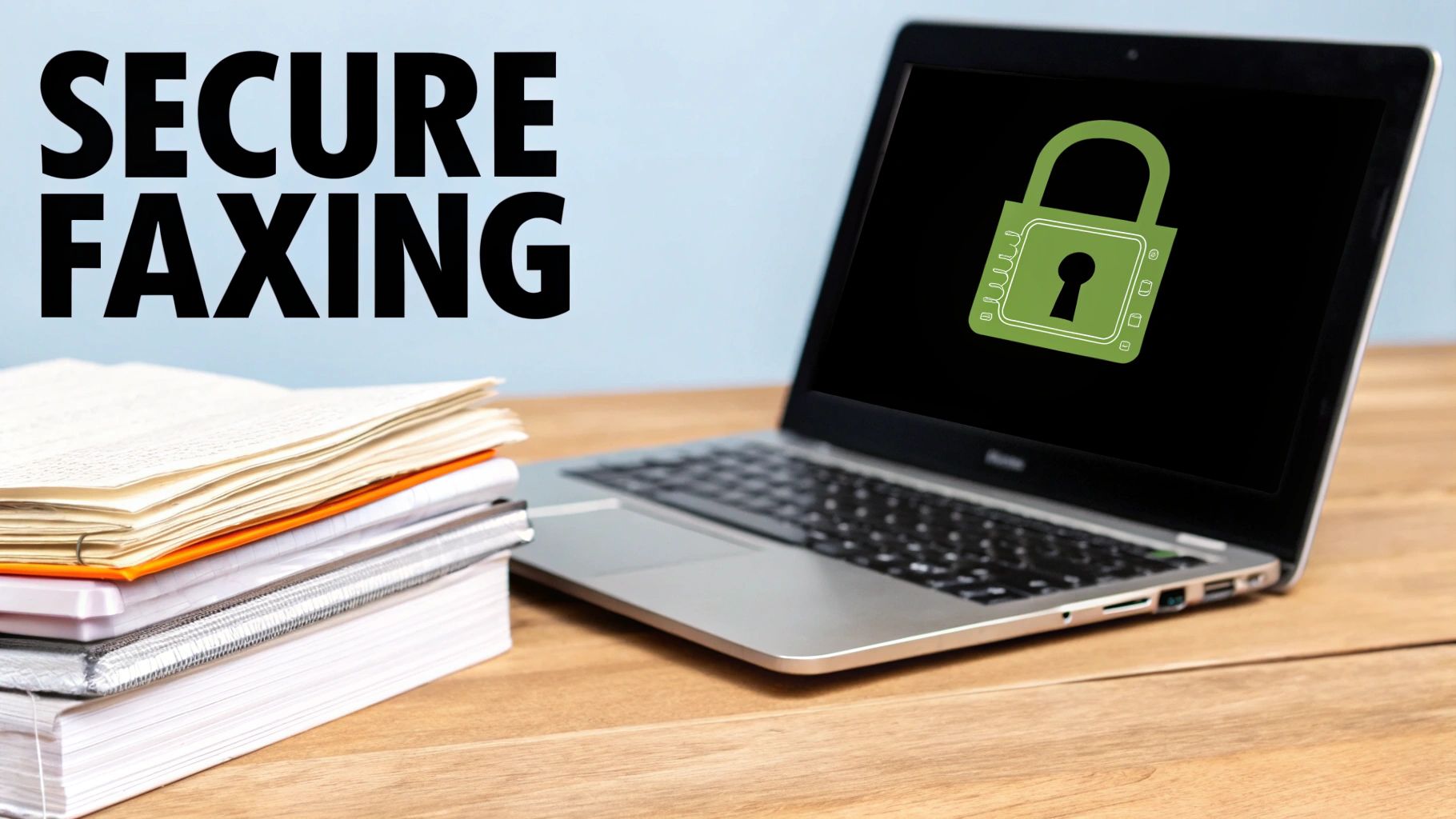
Let's be honest. When you’re sending a fax from your computer, it’s probably not a dinner invitation. More likely, it’s something important and private—medical records, a signed contract, or financial statements. This is why security isn't just a nice-to-have feature; it's the whole point.
The good news is that modern online fax services are built for this. They offer a level of protection that the old clunky office fax machine could never match. Think about that shared machine in the corner of the office. Any document you send can sit in the output tray, visible to anyone who walks by. An online fax, on the other hand, zips through a secure, encrypted tunnel directly to the recipient. It’s the digital equivalent of a sealed, tamper-proof envelope.
Key Security Features to Look For
When you're picking a service, there are a few non-negotiable security features to watch for. At the top of the list is encryption. You'll want a service that uses a heavy-hitter like 256-bit AES to scramble your files. This should apply both while the fax is in transit and while it's stored on their servers (at-rest). It’s a simple way to ensure that even if someone intercepted your data, it would be completely unreadable.
Another big tell is compliance with industry standards. If you're in healthcare, for instance, HIPAA (Health Insurance Portability and Accountability Act) compliance is a must. This means the service adheres to strict federal rules for protecting patient data. Reputable providers are usually upfront about their compliance credentials, so it shouldn't be hard to find.
The biggest security win with online faxing is the control it puts back in your hands. You're eliminating the physical weak spot—the shared machine—and all the risks that come with it, from lost pages to prying eyes.
Best Practices for Protecting Your Information
Of course, the service is only one half of the equation. A few smart habits on your end can seal the deal and keep your information locked down.
- Always Verify the Number: This one seems obvious, but it’s the easiest mistake to make. One wrong digit and your confidential document ends up in the hands of a total stranger. Double-check it before hitting send.
- Use Strong Account Security: Treat your fax service account like your bank account. Use a strong, unique password and enable two-factor authentication if it’s offered.
- Review Confirmation Receipts: Don’t just assume the fax went through. Always check the delivery confirmation. It’s your proof of receipt, so save a copy for your records.
These simple checks, paired with a solid service, create a robust defense for your data. The technology behind this is pretty impressive, too. Modern Group 3 fax transmissions can compress and send millions of bits of data in just 6 to 15 seconds. You can learn more about the evolution of fax technology at Britannica if you're curious about the technical side.
Choosing the right platform is critical. Our online fax services comparison is a great place to start, as it breaks down what to look for in terms of security. At the end of the day, sending a fax from your computer isn't just about convenience—it's about choosing a fundamentally more secure way to handle your important documents.
Common Questions About Sending a Fax from a Computer
Even when the process seems simple, it's natural to have a few questions bubble up the first time you send a fax from your computer. Getting those sorted out is the key to feeling confident and knowing exactly what to expect. Let's walk through some of the most common things people ask about online faxing.
The whole idea is to make sending a digital fax feel as normal as shooting off an email. This is your final-check guide before you hit that send button.
Do I Need a Phone Line to Fax from My Computer?
This is easily the most common question, and I've got good news: the answer is a firm no. When you use a web-based service, you completely bypass the need for a physical phone line. Your internet connection is the only thing you need.
Think of the online fax service as a smart go-between. It takes the file you upload, dials into the old-school telephone network from its end, and sends the information over to the recipient's fax machine. It's a clever bridge connecting your modern setup to their legacy tech, which means you can send a fax from my computer from a coffee shop, your home office, or anywhere else with a Wi-Fi signal.
Is It Possible to Receive Faxes on My Computer?
Absolutely. While a service like SendItFax is built for sending faxes quickly and easily, many other providers offer subscription plans that include your own dedicated fax number. This turns your computer into a full-fledged fax hub.
The setup is pretty slick:
- You get a unique local or toll-free fax number.
- When someone sends a document to that number, the service catches it.
- It instantly converts that transmission into a digital file (almost always a PDF).
- That PDF is then sent straight to your email inbox or a secure online dashboard.
This lets you manage all your faxes in one place, creating a tidy, paperless system.
Being able to send and receive faxes on your computer takes an outdated chore and makes it a modern, efficient part of your workflow. It folds faxing right into the digital tools you already use, no extra hardware required.
Can I Send a Fax Internationally?
Yes, and this is one of the best perks of using an online service. Sending a fax across the globe is almost identical to sending one down the street, with just one small but critical detail to remember: the number format.
You have to add the correct country code at the beginning of the recipient's fax number. For instance, if you're sending a fax to someone in the United Kingdom, you'd start the number with +44. Just be sure to glance at the service's pricing, as international rates are usually a bit different from domestic ones.
What Usually Causes a Computer Fax to Fail?
A failed fax is annoying, but the cause is almost always something simple and easy to fix. Knowing what to look for can help you solve the problem in seconds and get your document on its way.
Most of the time, a transmission error comes down to one of these culprits:
- Incorrect Fax Number: This is the big one. A single wrong digit is the most common reason a fax fails. It pays to take a second and double-check the number before you send.
- Busy Signal: The fax machine on the other end might just be in use. Good online services don't give up after one try; they'll typically make several more attempts automatically to get through.
- File Issues: A corrupted file or an unusual document format can trip up the system. The safest bet is to always convert your document to a standard PDF before you upload it.
If you keep these simple things in mind, you'll find that online faxing is incredibly reliable, ensuring your important documents get where they need to go, every time.
Ready to send your first fax without the hassle? With SendItFax, you can send a secure fax in minutes right from your browser—no account needed. Try it now at https://senditfax.com.
Related Posts
Fax to PDF: The Modern Guide to Digital Faxing in 2026
Resource Allocation Optimization: A Practical Guide