Your Ultimate Guide to Modern Scanning and Faxing
The way you scan your document can make or break your fax transmission. It really comes down to what you're sending and what tools you have on hand. For a quick receipt, your phone is more than enough. But for a 30-page legal contract, you'll want something more robust to ensure it looks professional on the other end.
From Paper Piles to Perfect Pixels
Before you can even think about faxing, you need a clean, high-quality digital version of your document. This first step is everything. A blurry, crooked scan is like sending a message written in invisible ink—it’s useless and can lead to serious mix-ups or delays.
The good news? You probably already have a great scanner nearby, whether it's the phone in your pocket or the big printer in the corner of your office. The trick is just picking the right one for the job. Getting this right from the start means your fax will arrive looking sharp and completely legible every single time.
Choosing the Right Scanning Tool
Deciding how to scan your document isn't complicated. It's a practical choice based on what you're scanning, how good it needs to look, and how much time you have. Let's look at the most common tools and figure out which one fits your situation.
Here's a quick comparison to help you decide on the fly:
| Scanning Method | Best For | Pros | Cons |
|---|---|---|---|
| Smartphone Camera | Single-page, on-the-go items like receipts, signed forms, or quick notes. | Extremely convenient; no extra hardware needed; fast for simple tasks. | Quality can be inconsistent; relies on good lighting and a steady hand. |
| Flatbed Scanner | High-importance documents: legal contracts, photos, ID cards, medical records. | Unbeatable quality and resolution; perfect alignment and even lighting. | Slower, especially for multi-page documents; requires dedicated hardware. |
| Multi-Function Printer (MFP) | Multi-page documents: reports, invoices, applications. | Great balance of quality and speed; Automatic Document Feeder (ADF) is a lifesaver. | Bulkier than other options; ADF can sometimes misfeed pages if not loaded carefully. |
Each of these tools has its place. Your phone is perfect for speed, the flatbed is the go-to for quality, and the MFP is the all-around workhorse for a busy office.
The Smartphone: Your Scanner on the Go
For most day-to-day needs, your smartphone is a powerhouse. When you just need to fax a signed permission slip from the school parking lot or snap a picture of a receipt for your expense report, a mobile scanning app is your best friend. Apps like Adobe Scan or even the built-in Notes app on an iPhone can automatically find the edges of your document, get rid of shadows, and turn it into a crisp PDF. For pure convenience, you can't beat it.
The Flatbed Scanner: When Quality Is King
However, there are times when "good enough" isn't good enough. For documents where every single detail matters—think legal contracts, detailed architectural plans, or medical records—a flatbed scanner is the only way to go. It gives you a perfectly controlled environment with even lighting and high-resolution capture that a phone just can't replicate. The result is a flawless digital copy, which is absolutely critical for official or legally binding paperwork.
The All-in-One: The Office Workhorse
So, what about a busy office with a mix of scanning jobs? That's where the multi-function printer (MFP), or all-in-one, really shines. These machines are the swiss army knives of the office, combining printing, copying, and scanning into one central hub. They strike a great balance, offering the quality of a flatbed with the speed needed for multi-page documents, all thanks to their automatic document feeders (ADF).
Real-World Tip: When you're using an ADF to scan a long document like a client agreement or a stack of invoices, always do a quick spot-check. I always glance at the first and last page of the digital file to make sure no pages got skipped or scanned at a weird angle. It takes five seconds and can save you a huge headache.
The MFP is built to handle the daily grind of an office, easily digitizing everything from a one-page memo to a 50-page report. It's the reliable core of any modern office workflow.
Getting Your Files Ready for a Perfect Send
A great scan is the first part of the puzzle, but prepping the file correctly is what really seals the deal. Think of it as a pre-flight check for your documents. Nailing these details ensures what your recipient sees on their end is just as crisp and clear as what's on your screen.
This workflow breaks down the three most common ways people turn a physical piece of paper into a digital file ready to fax.

Whether you’re using your phone for a quick job or a dedicated scanner for high-quality results, each path has its own pros and cons.
Dialing in the Right Resolution
The resolution of your scan, measured in dots per inch (DPI), is a balancing act. It directly affects how readable your document is and how big the file size gets. If the file is too big, the fax might fail. Too small, and it could be a blurry mess.
For most documents filled with text, 200 DPI is the industry-standard sweet spot. It keeps everything perfectly legible without making the file so large that it chokes the transmission.
Got a document with tiny footnotes or detailed graphics? Bumping the resolution up to 300 DPI is a smart move. I’d advise against going any higher, though. For faxing, you get diminishing returns on quality, and the file size just balloons, slowing everything down.
Picking the Best File Format
The file type you save your scan as is just as critical as the scan itself. While you'll see a lot of options, a couple of formats have proven to be the most reliable for faxing.
Here’s the breakdown:
- PDF (Portable Document Format): This is the undisputed king for a reason. PDFs lock in all your formatting, fonts, and images, so that multi-page contract looks exactly how you intended. They are secure and universally accepted.
- TIFF (Tagged Image File Format): You'll often see TIFF files in medical and legal settings. It's a high-quality "lossless" format, meaning it's great for single-page scans where every last pixel matters. For anything with multiple pages, however, PDF is usually the more practical choice.
What if your document is already digital, like a Word file? You'll need to convert it properly first. We've put together a complete walkthrough on how to convert Word to PDF that covers all the best practices to get your files fax-ready.
Making Files Smaller Without Sacrificing Quality
Compression is your best friend for a fast, successful fax. It shrinks your file size, making it much easier to transmit.
When you're saving your scan, look for compression settings. If you can, always choose a lossless compression method (like LZW, which is common for TIFFs). This technique reduces the file size without throwing away any data, so the quality stays exactly the same.
For PDFs, the standard compression settings are usually perfectly optimized for faxing. They intelligently remove junk data while keeping the important stuff—your text and images—sharp. Honestly, this one simple step can be the difference between a frustrating "transmission failed" error and a successful delivery.
How to Send an Online Fax Confidently
You’ve done the prep work and have a perfectly optimized file ready to go. Now for the easy part: sending it. Modern online fax services have turned what used to be a clunky, machine-driven process into something as simple as sending an email. Let's walk through the final steps to get your document where it needs to go, securely and without a hitch.
Even with all our digital tools, faxing has held on surprisingly well. The global fax machine market was valued at USD 1.5 billion in 2023 and is actually expected to grow, thanks to industries like healthcare and government that rely on its security. According to DataIntelo's market analysis, this isn't just nostalgia; it's a testament to its enduring role. This is exactly why knowing your way around scanning and online faxing is still such a practical skill.
Uploading Your Document and Entering Details
Getting your document into the system is usually the most straightforward step. Services like SendItFax are designed to be intuitive, so you’ll typically just see a "Choose File" button or a drag-and-drop area.
Once your document is uploaded, you'll need to fill out the sender and recipient info. This is the one place you really need to slow down and double-check everything.
- Your Information: Pop in your name and email address. This is critical because it’s how you’ll get the confirmation that your fax was delivered successfully.
- Recipient’s Information: Carefully type in the recipient's name and, most importantly, their fax number. A single mistyped digit is the number one reason faxes fail to send.
This is what a typical online fax interface looks like—clean, simple, and designed to guide you through the process.
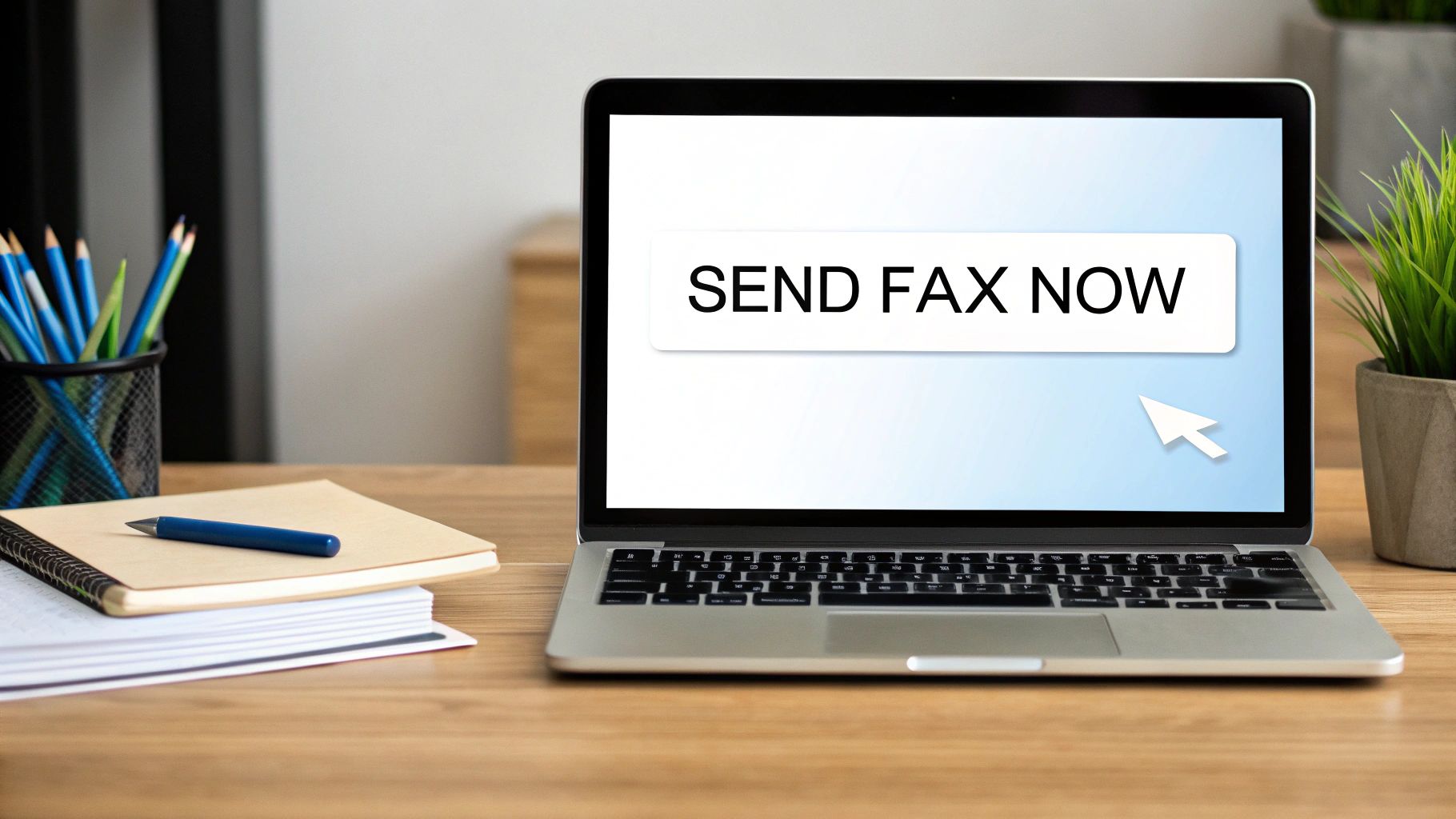
The layout helps you avoid mistakes by making sure every required field is filled out before you move on.
Choosing Your Service Tier
Most online fax services offer a couple of options to fit different needs. With SendItFax, for example, your choice really comes down to what you're sending and to whom.
Pro Tip: Think about your audience. A free cover page with the service's logo is fine for casual faxes. But if you're sending a job application or a legal document, the small investment for a clean, unbranded transmission looks far more professional.
- Free Plan: This is great for quick, one-off faxes that aren't super critical. You can usually send a few pages, but the cover page will have the service's branding on it. It’s perfect for sending a signed permission slip to your kid's school or a quick form to a local business.
- Paid Plan (like the "Almost Free" plan): For anything that requires a more professional touch, a low-cost, per-fax plan is the way to go. It removes the branding, lets you send longer documents (often up to 25 pages), and can even give your fax priority in the sending queue.
Ultimately, it’s about matching the tool to the task.
Adding a Professional Cover Sheet
The cover sheet is your document's first impression. It tells the recipient who the fax is for, who sent it, and what it’s about. When you use an online service, you’ll just type your message into a text box, and the system will automatically format it into a clean, professional-looking cover page.
For many people, the real game-changer is being able to send a fax right from their email inbox. It blends the security of faxing with the convenience of a tool you use every day. If that sounds useful, you can learn more in our detailed guide on how to fax via email.
Before you hit send, just give everything one last look—the recipient’s number, your email, and the file you attached. Then, you can send it off with confidence.
Confirming Delivery and Troubleshooting Common Errors
So you’ve scanned your document, prepared the file, and clicked "Send." What now? This next part is arguably the most critical: making sure your fax actually landed where it was supposed to. With an online service, you won't hear that classic fax machine screech, but you'll get something much better—a clear, digital confirmation. Think of it as your official receipt.
You should get an email notification almost instantly once the transmission finishes. This report is your proof, containing all the important details like the date, time, recipient's number, and the final delivery status. I always make it a habit to file these confirmation emails away, especially for anything that's legally binding or on a tight deadline.
Decoding Your Fax Status
Your delivery report will tell you exactly what happened, and knowing how to read the status is key. Most of the time, you'll see a success message, but other statuses are a signal that you might need to step in.
Here’s a quick breakdown of what you’ll typically see:
- Sent/Delivered: This is what you want to see. It means your fax went through perfectly and was received by the other machine. Mission accomplished.
- Busy: This is probably the most common error you'll encounter. It just means the recipient's fax line was tied up when your service tried to connect. The good news is that most services will automatically try again a few times.
- No Answer: This one means the receiving machine never picked up the call. It could be turned off, out of paper, or having some other technical hiccup.
- Failed: This is a more generic error that could mean a few different things—a bad connection, an issue with your file, or even a wrong number.
A "Busy" signal isn't a failure—it's just bad timing. Before you resend, I always suggest waiting about 15-20 minutes. This gives the other line a chance to clear and often solves the problem without any extra effort on your part.
Quick Fixes for Common Faxing Problems
When a fax fails, it’s usually for a pretty simple reason. Instead of getting frustrated, just run through this mental checklist to figure out what went wrong.
First, check the fax number. I know it sounds obvious, but a single mistyped digit is the number one reason faxes fail. Carefully double-check that you entered the right number, including the full area code. It’s an easy mistake to make when you're moving fast.
If the number is right and you're still getting "Busy" or "No Answer" errors, the problem is almost certainly on their end. Their machine might be offline, out of paper, or just unplugged. The simplest solution is often the best: give the recipient a quick phone call to ask if their machine is on and ready to receive. It can save you a ton of hassle.
Finally, take a look at your file. If it’s too large or saved in an unsupported format, the transmission might time out or fail. Stick to standard PDF files and keep an eye on the page count to ensure a smooth delivery.
Getting Serious About Security and Compliance
For a lot of us, how a document gets sent is just as important as what’s inside it. When you're dealing with medical records, legal contracts, or financial statements, security isn't just a nice-to-have feature—it's a hard requirement. The entire process, from scanning a piece of paper to hitting "send" on a fax, needs to line up with some pretty strict legal and privacy standards.
There's a reason faxing has stuck around for so long, and it's all about security. A traditional fax machine creates a direct, point-to-point connection over a telephone line. That makes it a whole lot harder to intercept than your average email, which is why industries governed by rules like HIPAA in healthcare still rely on it day in and day out.
And this isn't some fringe technology holding on. People sent over 17 billion faxes in 2019, with US healthcare alone accounting for more than 9 billion of them. The numbers don't lie. Faxing is still the king where compliance is the top priority. A survey even found that 82% of large companies said their fax usage was either holding steady or actually growing.
How Modern Encryption Elevates Fax Security
Today's online fax services take that classic security and beef it up with modern digital protection. When you upload a document to a platform like SendItFax, it's immediately wrapped in the same kind of heavy-duty encryption used by your online bank.
Here’s what’s happening behind the scenes to protect your data:
- Encryption in Transit: From the moment your file leaves your computer until it reaches the recipient's fax machine, it's scrambled using SSL/TLS encryption. Think of it as sending your document through a secure, armored tunnel where no one can peek inside.
- Encryption at Rest: Good services don't stop there. They also encrypt your files while they're stored on their servers. This is a critical second layer of defense, protecting your documents before they're sent and after they've been delivered.
By blending the direct-dial security of old-school faxing with the power of modern encryption, online faxing gives you the best of both worlds. It’s a hybrid approach that satisfies legacy systems while meeting today's tough data privacy demands.
Practical Tips for Handling Sensitive Information
While the technology provides a secure pipeline, compliance is a team sport. It starts the second you lay a document on the scanner glass and requires a bit of thoughtful handling all the way through. If you're curious about the nitty-gritty differences, our guide on whether fax is more secure than email is a great read.
Building a few good habits into your workflow can dramatically lower your risk and keep you on the right side of the law.
Secure Your Digital Files First
Before you even get to the sending part, stop and think about where your scanned document is living. Don't be the person who leaves a sensitive client contract or a patient's medical chart sitting on the desktop of a shared office computer. That's just asking for trouble.
Instead, make it a rule to save scanned files directly to a secure, access-controlled folder.
Once you get that fax confirmation receipt, have a clear policy for the digital original. If you don't need it anymore, delete it securely. This minimizes your data footprint. For instance, a law firm could have a process where a scanned contract is immediately uploaded to an encrypted client portal, and the local copy on the scanning computer is permanently deleted. It’s a simple step that closes a common security gap.
Your Questions About Modern Scanning and Faxing, Answered
Even as we've all moved toward more digital workflows, scanning and faxing haven't gone away. They've just changed. If you’re finally ready to ditch that old, noisy machine in the corner, you probably have a few questions about how this all works today. Let's tackle some of the most common ones I hear.
The biggest shift is mental—getting past the idea that you need a dedicated, physical machine for these tasks. The modern approach is all about using the tools you already own to get things done faster and more securely.
Do I Really Still Need a Physical Fax Machine?
Nope, not at all. Think of an online fax service as a digital bridge. It takes a file from your email or a website and sends it directly to a traditional fax machine on the other end.
You just upload your document, and the service does all the heavy lifting, handling the transmission over phone lines. This means you can manage everything right from your computer or smartphone without ever needing to touch a dedicated piece of hardware.
What's the Best File Format to Use for Faxing?
While you can often send things like DOCX files or even JPG images, PDF is the gold standard. It’s hands-down the most reliable format for any professional document because it locks in all your formatting, fonts, and images exactly as they are.
When you send a PDF, you know the contract or invoice the recipient sees on their end will look precisely how you designed it. That kind of consistency is absolutely critical for important business communications.
Is It Secure Enough for Sensitive Information?
Yes, and honestly, it's often much more secure than the old way. Think about the shared office fax machine, where sensitive documents could sit out in the open for anyone to see.
Reputable online fax services use strong, end-to-end encryption (like SSL/TLS) to protect your data as it travels. This scrambles the information, making it unreadable if intercepted. It's a method trusted for legal, financial, and even healthcare documents that fall under compliance rules.
Can I Actually Get a Good Scan From My Phone?
You absolutely can. Your smartphone, combined with a good scanning app, is a surprisingly powerful tool for creating high-quality digital documents. For most everyday needs, you don't need any other expensive equipment.
The trick is just to follow a few best practices to get a professional result:
- Lay your document on a flat surface with a contrasting background, like a dark desk.
- Make sure you have plenty of light to avoid weird shadows or a grainy-looking image.
- Let the app's edge detection work its magic to automatically find, crop, and straighten the document for you.
With the right app, a quick snapshot becomes a clean, squared-up, and fax-ready PDF in just a few seconds. It makes the whole process incredibly smooth.
Ready to send a fax without the hassle of a machine? With SendItFax, you can upload your document and send it securely in minutes. Try it now at https://senditfax.com.
Related Posts
Cover Sheets for Word: Build, Format, and Fax
How to Fax a Document: Complete Guide for 2026