Mastering how to fax on a mac: A Quick Guide
Sending a fax from your Mac in this day and age is actually a lot easier than you might think. With modern web-based services, you can just upload a document, punch in a fax number, and send it right from your browser. No dedicated fax machine, phone line, or clunky software needed.
Why Bother Faxing From a Mac in 2024?
I know, faxing feels like a relic from another time. It's easy to wonder why it's still around. Years ago, older Macs actually came with built-in modems that made faxing straightforward, but Apple ditched that hardware a long time ago. That left a lot of us Mac users in a bind, especially professionals who still rely on fax for some very good reasons.
The main one? Security. Unlike a standard email, a fax transmission creates a direct, point-to-point connection that’s much harder to intercept. That’s a huge deal when you're handling sensitive information, and it's precisely why some industries just can't quit it.
Who's Still Faxing? You'd Be Surprised.
Plenty of industries absolutely depend on the verifiable, secure delivery that only a fax can provide. It's not about being old-fashioned; it's about compliance and security.
Here are a few of the big ones:
- Healthcare: Doctors' offices and hospitals are constantly faxing patient records, prescriptions, and lab results. It’s a core part of their workflow for staying compliant with privacy laws like HIPAA.
- Legal: Law firms and courthouses rely on fax for sending time-sensitive, legally binding documents. When you need undeniable proof that a contract or court filing was sent and received, a fax transmission receipt is gold.
- Finance and Real Estate: Think about all the sensitive data on loan applications, closing documents, and financial statements. Banks, lenders, and real estate agents use fax to move these files securely.
For any Mac user in these fields, figuring out how to fax isn't just a "nice to have"—it's a critical part of the job. The real challenge has been connecting our modern Mac workflows with this legacy, but essential, communication method.
The Modern Solution: Online Faxing
The ongoing need for faxing has created a huge opening for cloud-based solutions. In fact, the global fax services market is expected to jump from $3.18 billion in 2022 to a whopping $5.96 billion by 2028, and a lot of that growth is coming from online faxing technology.
This is where online fax services like SendItFax come in. They completely solve the Mac user's problem by turning the old-school fax process into a simple, web-based task. All you need is an internet connection.
It’s a total game-changer. Instead of being chained to a physical machine, you can now send secure documents from anywhere. You get the tried-and-true security of a fax with the convenience we expect from modern tech. For a deeper dive, check out our article exploring if fax is more secure than email. It’s really the best of both worlds, making faxing from a Mac not just possible, but incredibly practical.
How to Send a Fax from Your Mac in Minutes
You’d think faxing from a Mac would be a headache, but these days it’s surprisingly simple. Forget digging out an old phone line or buying a clunky machine. With a web-based service like SendItFax, all you really need is the document you want to send, the recipient's fax number, and an internet connection.
This approach is a lifesaver for those one-off emergencies. Maybe you're a freelancer who just landed a new client and they need a signed W-9 back now. Or perhaps you’re dealing with a family matter and have to get a signed document over to a lawyer’s office that, for whatever reason, still lives in the fax era. In those moments, you don't want a project; you just want to get it done.
Get Your Document Ready First
Before you even think about sending, you need to get your document in order. The single most important thing is to use a file format that plays nicely with online fax services. This one step can save you from a world of transmission errors.
Your best bets are universally accepted formats:
- PDF (.pdf): This is the gold standard, hands down. A PDF locks in all your formatting, so what you see on your Mac screen is exactly what spits out of the fax machine on the other end.
- Microsoft Word (.doc, .docx): These are also widely supported and perfect for documents you've just finished typing up. The service will handle converting it into a fax-friendly format for you.
Here's how I think about it: sending a PDF is like mailing a sealed, laminated letter—it’s guaranteed to arrive perfectly intact. A Word doc is more like a standard letter; it almost always gets there just fine, but there's a tiny chance the formatting could get a little jumbled in the conversion. For anything important, I always take the extra 10 seconds to export to PDF from Pages or Word. It’s the safest bet.
Once you have your file, the rest happens right in your web browser. This screenshot from the SendItFax homepage shows you just how clean the process is.
There’s no clutter here. You see exactly what you need: fields for the recipient and sender info, plus a big, obvious button to add your document. It removes all the guesswork and gets you straight to the point.
The Step-by-Step of Sending
With your document saved and ready to go, the actual sending part is a breeze—it’s honestly as easy as sending an email.
First, you'll plug in the basic details. This is usually just your name and email, then the recipient's name and, of course, their fax number. My one piece of advice here: double-check that fax number. A single wrong digit is the number one reason faxes fail to go through.
Next, you’ll upload your file. Just look for a button that says something like "Choose File" or "Upload Document." This will pop open a window where you can find and select the PDF or Word file from your Mac, exactly like attaching a file to an email.
A Pro Tip on Cover Pages: Don't skip the cover page message! It’s more than just a formality; it adds a layer of professionalism. It tells the recipient who sent the fax, who it’s for, and what it’s about. Something simple like "Signed contract for Project Alpha" or "Requested medical records" makes a huge difference.
Once everything is filled out, you just hit "Send." The service handles the rest, converting your digital file into a signal a traditional fax machine can read and then dialing the number to deliver it. You’ll get an email confirmation once it's been successfully sent, so you’re not left wondering if it went through.
Which Service Option Is Right for You?
Not everyone's faxing needs are the same, and most online services get that. They usually offer a couple of different tiers, which is great because a surprising number of businesses still run on this tech.
It’s hard to believe, but around 17% of businesses worldwide still rely on faxing for important tasks, especially in fields like healthcare, law, and government. The market isn't going away, either. It was valued at $3.46 billion in 2023 and is expected to hit $6.5 billion by 2029. Since modern Macs don't have built-in modems, these online platforms are the only bridge to this surprisingly persistent technology. If you're curious, you can learn more about why faxing is still relevant in business.
With that in mind, here’s a typical breakdown of the options you’ll find:
Free vs. Almost Free: A Quick Comparison
| Feature | Free Option | Almost Free ($1.99) Option |
|---|---|---|
| Page Limit | Up to 3 pages + cover | Up to 25 pages + cover |
| Branding | SendItFax branding on cover page | No third-party branding |
| Cover Page | Required | Optional |
| Best For | Quick, non-sensitive forms (e.g., gym cancellation, simple applications) | Professional documents (e.g., client contracts, legal filings) |
The free option is perfect for those quick, simple tasks where a bit of branding on the cover page doesn't matter. Think sending a one-page form to a government agency or a quick note to a local shop.
The "Almost Free" option, which usually just costs a couple of bucks, is my go-to for anything professional. When you're sending a contract to a client, you want it to look clean—no one else's logo on it. The higher page limit and priority delivery also make it the clear winner for bigger documents that need to get there without a hitch.
Comparing Your Mac Faxing Options
While a web-based service is often the fastest way to send a fax from a Mac, it's not the only game in town. Depending on what you need to do and how often you do it, a different approach might actually be a better fit.
Let’s walk through the main contenders: dedicated online fax services, trusty All-in-One printers, and clever mobile apps that turn your iPhone into a fax machine. Each has its own strengths and weaknesses.
The Pure Convenience of Online Fax Services
The biggest win for online faxing is its sheer simplicity. There's zero hardware to buy, no clunky software to install, and you don’t need a dedicated phone line. If you've got an internet connection on your Mac, you're good to go.
This approach is a lifesaver for anyone working remotely or who just doesn't want to be tied to a physical office. Picture this: you're at a coffee shop and need to send a signed contract back to a client immediately. An online service lets you do that in under a minute. It’s also the most logical choice for anyone who sends a fax only once in a blue moon—the cost and clutter of a physical machine just don't make sense.
Not sure if a pay-as-you-go plan or a subscription is right for you? This chart breaks it down.
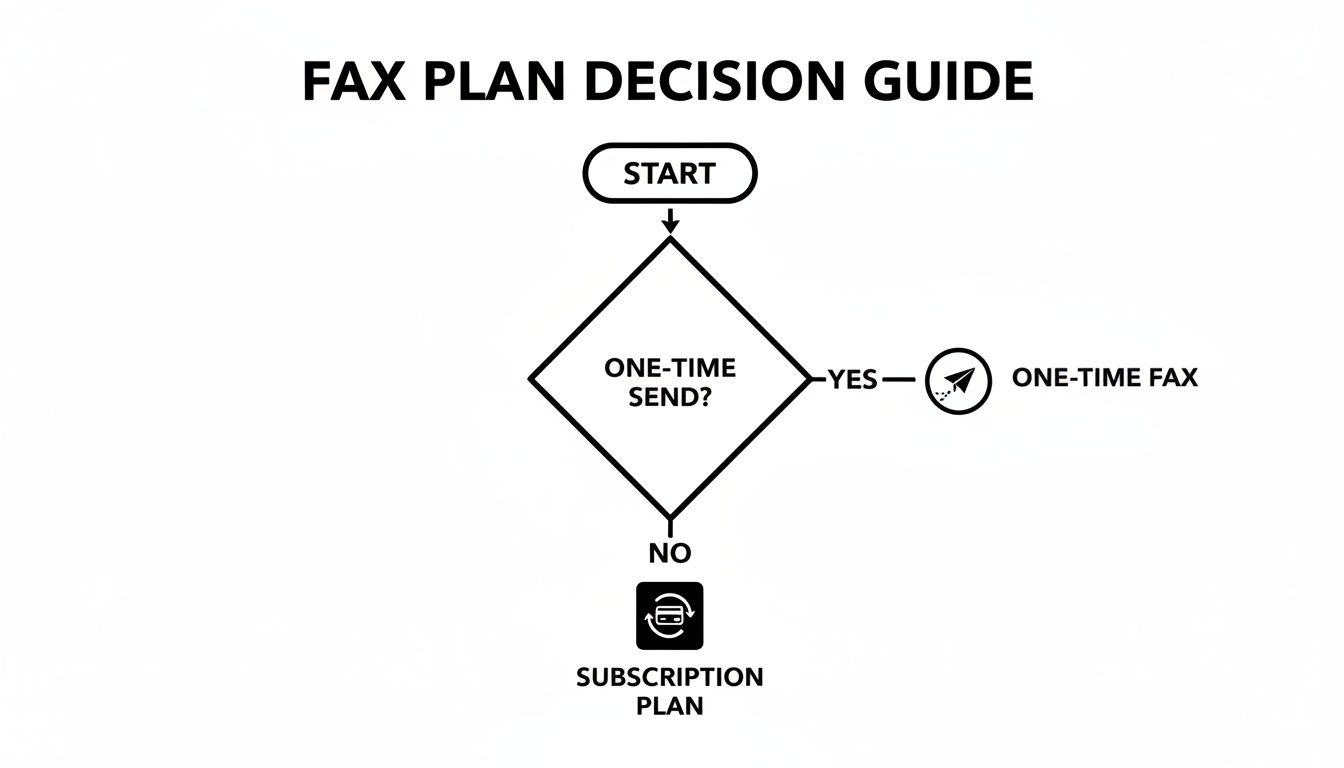
The takeaway is pretty clear: for those one-off faxes, a pay-per-send model is your best bet. If you're faxing regularly, you'll definitely get more bang for your buck with a subscription.
Using an All-in-One Printer
If you already have an All-in-One (AIO) printer in your home or office, you might have a fax machine hiding in plain sight. Many of these workhorses can print, scan, copy, and fax. The main appeal here is that you own the hardware, so you won't be paying any recurring service fees beyond your phone bill.
But that’s where the strings come in. First, you need an active landline phone connection, which is becoming a rarity and adds a monthly expense. More importantly, you're physically chained to the printer. That's fine if you're always in the office, but it's a complete non-starter for anyone needing to send a document while on the road.
For a small business sending a high volume of faxes every day from a central location, an AIO printer can be a really cost-effective solution. For most individuals and remote professionals, though, the lack of mobility and the extra cost of a phone line make it far less practical.
The Mobile Fax App Workaround
A third route is to use a dedicated fax app on your iPhone. These apps cleverly use your phone’s camera as a scanner, letting you digitize physical documents and fire them off as faxes right from your device. It’s incredibly handy when you're away from your Mac and need to send something physical, like a signed receipt or a form you just filled out by hand.
While this is great for mobile-first situations, it has its limits. The quality of your "scan" really depends on having good lighting and a steady hand. Also, these apps nearly always work on a subscription or credit-based system, which can get pricey if you send faxes often. They're best treated as a tool for emergencies or for when you need to digitize paper on the fly.
Mac Faxing Methods At a Glance
To make this choice a little easier, let's lay it all out side-by-side. This table gives you a quick, at-a-glance comparison based on the factors that matter most.
| Method | Best For | Cost | Convenience | Hardware Needed |
|---|---|---|---|---|
| Online Service | Remote work & occasional faxes | Pay-per-fax or monthly plan | High: Send from anywhere | None |
| All-in-One Printer | High-volume, in-office use | One-time hardware cost + phone line | Low: Tied to one location | AIO printer & phone line |
| Mobile App | On-the-go scanning & sending | Subscription or pay-per-fax | Medium: Great for mobile, less for digital files | iPhone or iPad |
Ultimately, the best method for you really boils down to your personal workflow, your budget, and how often you're sending faxes. For a deeper dive, our comprehensive online fax services comparison can help you weigh even more variables.
But for the vast majority of Mac users, the mix of low cost, high convenience, and zero hardware makes an online service the undisputed winner.
How to Prepare Documents for Flawless Faxing
Sending a fax that actually looks good on the other end is about more than just hitting "send." A successful transmission starts long before that—it begins with how you prepare your document. The quality of your file directly impacts how it arrives, and a few small adjustments can be the difference between a crisp, professional document and an unreadable smudge.
Here’s the thing to remember: fax technology basically takes your high-resolution digital file and squishes it into a simple black-and-white image. All those subtle colors, intricate details, and tiny fonts? They just don't survive the trip. The goal is to prep a document that works with that process, not against it.
Choose the Right File Format
Before you even think about fonts or margins, your file type is the most important choice you'll make. Online fax services are designed to work smoothly with standard formats to avoid compatibility headaches. Sticking to the basics will prevent a ton of potential errors right from the start.
For faxing from your Mac, these are your safest bets:
- PDF (.pdf): This is the undisputed champion. A PDF locks in all your formatting, so what you see on your Mac screen is exactly what the recipient's fax machine will print out. No surprises.
- Word Documents (.doc, .docx): Also widely supported and perfect if you're sending something you just typed up. The fax service handles the conversion on its end, which is incredibly convenient.
My personal workflow, after years of doing this, is to always convert my file to a PDF before sending. Even if I create a document in Word or Apple Pages, I take the extra ten seconds to use the "Export to PDF" function. It gives me complete peace of mind that no weird formatting shifts will happen during the transmission.
If you need a quick refresher, we have a simple guide on how to convert a Word document to a PDF right on your Mac.
Format Your Document for Clarity
With the right file type sorted, it’s time to think about readability. Because faxing flattens your document into a low-resolution image, simplicity is your best friend. A document that looks beautiful on your Retina display can quickly become illegible after being faxed.
Here are a few practical tips I always follow:
- Use High Contrast: Black text on a clean white background. This is non-negotiable. Gray text, colored backgrounds, or watermarks will likely turn into a blurry mess.
- Stick to Simple Fonts: Forget the fancy, thin, or ornate fonts—they tend to break up and become unreadable. Stick with clean, standard choices like Arial, Helvetica, or Times New Roman. A 12pt font size is a safe bet.
- Avoid Small Details: Complex graphics, photos with lots of shading, and tiny footnotes are the enemy of a clean fax. If you have to include an image, make sure it’s a simple, high-contrast logo or line drawing.
A successful fax is a readable fax. The goal isn't to create a design masterpiece; it's to ensure the critical information—text, numbers, and signatures—is transmitted clearly and accurately.
Crafting an Effective Cover Page
Finally, don't skip the cover page. It’s not just a formality; it’s the first thing your recipient sees and acts as a professional introduction. Most online services like SendItFax make this easy by giving you fields to fill in with the essential information.
A solid cover page should always include:
- Recipient's Information: Name, company, and their fax number.
- Sender's Information: Your name, company, and a contact number.
- Date and Page Count: The date of transmission and the total number of pages (including the cover sheet).
- A Brief Subject Line: Something clear, like "Signed Agreement for Project X."
Getting this prep work right is more important than ever. In 2019 alone, businesses and individuals sent over 17 billion faxes globally. The fax software market is set to grow from $2.5 billion in 2023 to $4.8 billion by 2032, proving this technology isn't going anywhere. With that much traffic, a well-prepared document ensures yours gets the attention it needs. You can learn more about the surprising persistence of fax technology and why it's still such a critical business tool.
Tackling Common Mac Faxing Hiccups
Even with modern tools, faxing can sometimes feel like a throwback to older tech—and it can come with some old-school problems. A fax that won't send or a recipient complaining about a blurry document is frustrating, but don't worry. Most of the time, the fix is surprisingly simple.
Let’s walk through the most common issues you might face and how to get things sorted out quickly. Think of this as your personal troubleshooting guide.
When Your Fax Just Won't Go Through
You hit "Send" and a few moments later, that dreaded "Failed" notification pops up. Before you start pulling your hair out, take a breath and check a few things. The culprit is almost always one of these usual suspects.
- Did you dial the right number? This is, by far, the most common reason for a failed fax. It’s so easy to mistype a digit. Double-check the entire number you entered—one wrong digit is all it takes.
- Is your internet connection solid? Web-based faxing is entirely dependent on your internet. If your Wi-Fi is flaky or drops for even a second during the transmission, the whole thing will fail. A quick check is to just try loading a new website. If it loads, you’re good to go.
- What's the signal? Sometimes, the issue isn't on your end at all. If you see a "busy signal" error, it means exactly what it sounds like: the recipient's fax machine is tied up. Just give it 10-15 minutes and try sending it again.
It's really no different than making a phone call. A wrong number won't connect, and a busy line is, well, busy. The same rules apply here.
Solving the "I Can't Read This" Problem
The good news: your fax went through. The bad news: the person on the other end says it looks like a garbled mess of smudges and blurry text. This problem almost always traces back to the quality of your original file.
Fax machines are relics in a high-res world. They essentially take your sharp, digital document and downgrade it to a low-resolution, black-and-white image. If your source file isn't ready for that transition, the results can be ugly.
This is where those document prep tips we talked about earlier really pay off. A clean, high-contrast document with simple fonts is your secret weapon against poor-quality faxes.
If someone complains about a garbled fax, open your original file and look at it through the eyes of a fax machine.
| Common Complaint | What's Likely Happening | How to Fix It |
|---|---|---|
| Blurry or Faint Text | You used a fancy font or light-colored text (like gray). | Switch all text to pure black. Stick to simple, standard fonts like Arial or Helvetica at a 12pt size. |
| Smudged Images or Logos | Your file contains complex graphics with gradients, shadows, or photos. | Fax machines hate complexity. If possible, replace images with simple line art or just remove them if they aren't critical. |
| Pages Get Cut Off | The document's margins are too narrow or the page size is non-standard. | Make sure your document is formatted for a standard 8.5" x 11" page with at least a 0.5-inch margin on all four sides. |
Taking a minute to check these things before you send saves you the headache of resending a failed fax later. It’s a simple habit that makes faxing from your Mac a completely trouble-free process.
Answering Your Mac Faxing Questions
You've got the methods down, but a few questions might still be lingering. Let's clear up some of the most common queries people have when faxing from their Mac for the first time. Think of this as the final check-in to make sure you're ready to send with confidence.
Is This Actually Secure for Sensitive Documents?
It's a fair question, and the answer is a resounding yes. In many ways, using a quality online fax service is more secure than sending a standard email. The reason? It all comes down to encryption.
Top-tier services like SendItFax use robust security protocols, like Transport Layer Security (TLS), to scramble your data as it travels from your Mac to its destination. This is the same kind of encryption your bank uses. For documents falling under strict privacy regulations like HIPAA, digital faxing is often the preferred method because it creates a verifiable "paper trail" of transmission—something a simple email can't provide.
Just be sure to give the service's privacy policy a quick scan to see exactly how they handle your data.
Can I Get Faxes Back on My Mac?
This really depends on the tool you choose. Many services are built for one-way traffic—sending faxes out. They’re perfect when you just need to get a document over to someone and don't expect a faxed reply.
To receive faxes, you'll need a service that gives you a dedicated virtual fax number. This number acts like your own personal fax machine. When someone sends a fax to it, the service receives it for you and conveniently forwards it to your email, usually as a PDF.
Do I Have to Install Any Software?
Nope, and that's one of the best parts. Modern online faxing is almost entirely browser-based. You just log in to a website, upload your file, and send. No downloads, no installations, and no worrying about whether it’s compatible with the latest macOS.
This web-based approach means you aren't chained to your desk. You can send a fax from your MacBook at a coffee shop, your iPad on the couch, or even your iPhone while you’re out and about. If you have an internet connection, you have a fax machine.
What Kind of Files Can I Send?
Most platforms are built to handle the file types you use every day. While there's some variation, sticking to the standards is the best way to avoid any weird formatting glitches on the other end.
Your best bets are:
- PDF (.pdf): This is the gold standard. It locks in your formatting, so what you see is exactly what they get.
- Word Documents (.doc, .docx): Also a safe and universally supported choice, especially for text-heavy files.
By using one of these common formats, you're sidestepping the vast majority of potential transmission errors before they even have a chance to happen.
Ready to send your first fax without the hassle of hardware or complicated software? SendItFax makes it easy to send documents from your Mac in just a few clicks. Try it now at https://senditfax.com.
Related Posts
Fax Cover Sheet to IRS: How to Send It Right
MS Office Fax Cover Sheet Template: Create and Customize