How to Fax from Laptop: A Modern Guide
When you need to fax from a laptop, the simplest, most straightforward way is to use an online fax service. These services act as a bridge, taking your digital files and sending them over the internet to a traditional fax machine. No hardware, no dedicated phone line needed.
Why You Still Need to Fax in a Digital World
It’s a fair question. Didn't faxing disappear along with dial-up modems and floppy disks? Surprisingly, no. In certain crucial industries, it's not just hanging on—it's still a required method of communication. For professionals in healthcare, law, and finance, sending a fax is often a non-negotiable part of the job.
The resilience of faxing boils down to two things: security and legal validity. A fax creates a direct, point-to-point connection that’s much harder to intercept than a typical email. This inherent security makes it the go-to for sending sensitive information, like medical records governed by HIPAA or legally binding contracts.
The Modern Advantage of Laptop Faxing
Knowing how to fax from a laptop connects these old-school requirements with today's need for flexibility. You’re no longer tied to a clunky machine in the corner of the office. Now, you can send critical documents from literally anywhere you have an internet connection.
This simple shift makes a huge difference:
- Better Security: Online fax services add modern encryption to the transmission process, giving you a layer of protection that old analog machines could never offer.
- Real Cost Savings: Forget about paying for paper, ink, toner, and machine maintenance. You also get to ditch the dedicated phone line that fax machines used to require.
- Total Convenience: Send a signed contract from a coffee shop or submit an urgent form from your home office. Your laptop is now a powerful, portable fax machine.
This isn't just anecdotal; the numbers back it up. The global fax services market was valued at an impressive USD 3.3 billion in 2024 and is expected to keep growing, largely because of its vital role in secure business communications. You can dig into the full fax services market trend report for a deeper look.
Key Takeaway: The real reason faxing sticks around is trust. When you send a fax, you get a transmission receipt. This receipt is legally recognized proof that your document arrived, confirming the exact time it was received.
For a quick overview of your options, here’s a look at the most common methods for faxing from a laptop.
Laptop Faxing Methods at a Glance
This table breaks down the main ways to send a fax from your computer, helping you pick the right one for the job.
| Method | Best For | Ease of Use | Typical Cost |
|---|---|---|---|
| Online Fax Service | Frequent faxing, businesses needing a dedicated number, and high security. | Very Easy | Monthly subscription (e.g., $10-$30/month) |
| Email-to-Fax | Quick, one-off faxes for users already subscribed to an online service. | Easy | Included with most online fax subscriptions. |
| Windows Fax & Scan | Occasional faxing for users with access to a landline and fax modem. | Moderate | Cost of a phone line and modem. |
| Mac Faxing Apps | Mac users who prefer a native app experience and have a fax modem. | Moderate | App cost plus phone line and modem. |
As you can see, online fax services usually offer the best balance of features, security, and convenience for most people today.
Why It Still Matters for You
At the end of the day, a fax provides a verifiable paper trail that’s often required for official business. When you absolutely need to send a document that requires a signature and undisputed proof of delivery, faxing remains the gold standard.
Understanding what is a fax number and how modern services work is the first step. By using your laptop, you can tap into this trusted system without any of the old-school headaches, ensuring your most important communications are both secure and compliant.
Using an Online Fax Service for the First Time
Diving into a new digital tool can seem like a chore, but you'll be surprised at how simple it is to send your first fax from a laptop. Online fax services have come a long way, and most are designed to feel as familiar as sending an email. Let's walk through a common, real-world scenario to see how it works.
Imagine you just found the perfect apartment, but the landlord needs the signed lease back immediately. For their own compliance reasons, they’ve asked you to fax it. This is the perfect situation to learn how to fax from a laptop without having to track down an old-school machine.
Navigating the Dashboard
Once you've picked a service like SendItFax and logged in, you’ll land on a clean, straightforward dashboard. The best part? There’s no software to install. Everything happens right in your web browser. The main screen will lay out all the essential fields you need to fill out.
You'll typically find a simple form with fields for:
- The recipient's fax number
- Your sender details (name, company, etc.)
- A button to upload your documents
- An area for a cover page message
The layout is built for speed, eliminating any guesswork. You just work your way down the form, filling in each part as you go.
Pro Tip: I can't stress this enough: always double-check the recipient's fax number. A single wrong digit is the number one reason faxes fail. Unlike email, you won't get a nice "undeliverable" message telling you about the typo.
Uploading Your Lease Agreement
Alright, let's get that signed lease attached. Modern online fax services are incredibly flexible and accept a ton of different file types, so you're not stuck with just one format.
Most platforms, SendItFax included, can easily handle:
- PDF files: This is the gold standard for official documents, as it preserves all formatting perfectly.
- Microsoft Word documents (.doc, .docx): Great for sending over contracts or letters you've just finished writing.
- Image files (.jpg, .png): Super useful if you signed a physical document and just snapped a clear picture of it with your phone.
In our scenario, you'd just click the "Upload File" button and grab the PDF of your signed lease from your laptop. The service takes care of converting and preparing it for transmission. You can even attach multiple documents, and the service will merge them into a single fax for you.
Adding a Professional Cover Sheet
Think of a cover sheet as the introduction to your fax. It tells the recipient who it's from, who it's for, and why you're sending it. This is especially important if you're faxing to a big office where your document might get passed around.
A good cover sheet always includes:
- To: The landlord's name
- From: Your name
- Date: The current date
- Pages: The total page count (including the cover sheet!)
- Subject: Something clear, like "Signed Lease Agreement for Apt 4B."
Most services also give you a text box for a quick note. A simple message like, "Hi, please find the signed lease agreement attached. I look forward to moving in!" adds a nice, professional touch.
Give everything one last look, hit "Send Fax," and you're done. If you're still weighing your options, our online fax services comparison is a great resource to help you find the perfect fit.
Getting Your Documents Ready for a Perfect Send
Sending a fax from your laptop is incredibly convenient, but a little prep work goes a long way. Think of it like this: you wouldn't feed a crumpled, messy stack of papers into a physical fax machine. The same logic applies here. Taking a moment to get your digital files in order is the key to making sure they arrive looking sharp and professional.
The most important choice you'll make is the file format. While a service like SendItFax is flexible, one format is king for a reason.
Why Your File Format Matters
Hands down, the best format for faxing is the Portable Document Format (PDF). It’s the gold standard. When you save a file as a PDF, you're essentially taking a snapshot that locks in everything—all the fonts, images, and spacing. This means that crucial invoice or signed contract will look exactly the same on the other end, with no weird formatting glitches or missing text.
Of course, other common formats work too:
- DOC/DOCX: Microsoft Word files are usually fine, but there's a small risk the formatting could shift if the recipient doesn't have the exact same fonts you do.
- JPG/PNG: Image files are great when you need to send a picture of something, like a signed document you snapped with your phone. Just make sure the photo is clear, well-lit, and easy to read.
From my own experience, I always convert my final documents to PDF before faxing. It's a quick, one-click step in almost any program and saves you from a ton of potential headaches. It guarantees my documents always look professional when they land.
Going From Paper to Pixels
But what if your document is a physical piece of paper, like a signed form or an important receipt? You don't need to hunt down a scanner. Your smartphone is a surprisingly powerful scanning tool that's probably within arm's reach right now.
Instead of just taking a picture, use a dedicated scanning app like Adobe Scan or even the feature built into your phone's Notes app. These tools are designed for this exact purpose. They'll automatically find the edges of the paper, fix the perspective, and boost the contrast to create a clean, crisp digital file that looks way better than a regular photo. It’s a simple trick that makes a huge difference in legibility.
Don't Skip the Cover Sheet
Finally, let's talk about the cover sheet. It might seem like a small detail, but it's the first thing your recipient sees. It’s your professional handshake, ensuring your fax gets to the right person right away, which is especially important in a big, busy office.
Make sure your cover sheet has all the essentials:
- To: The recipient's full name, company, and fax number.
- From: Your name, company, and a contact phone number.
- Date: The date you're sending the fax.
- Pages: The total page count, and don't forget to include the cover sheet itself in that number.
- Subject: A clear, concise subject line (e.g., "Signed Lease Agreement for Suite 2B") and a quick note in the comments can add vital context.
The good news is that most web-based fax services generate this for you. You just fill in the blanks. It’s a foolproof way to ensure your fax is professional, complete, and arrives without a hitch.
Exploring Other Ways to Fax From Your Laptop
https://www.youtube.com/embed/qtWEtt5JV90
While logging into a web portal is a fantastic, straightforward way to send a fax, it’s not the only tool in your digital faxing kit. Sometimes your workflow just demands something faster or more integrated. Let's dig into a couple of powerful alternatives that give you even more flexibility.
The Power of Email-to-Fax
One of the most efficient methods out there is email-to-fax. This is a killer feature that most quality online fax services include, and it essentially turns your regular email client—whether it's Outlook, Gmail, or Apple Mail—into a direct faxing machine. It's perfect for those moments when you just need to fire off a document without logging into another website.
The process itself is refreshingly simple. You just compose a new email, attach your document (like a PDF or Word file), and send it to a special address provided by your fax service. It's that easy.
Before you send, you obviously need your document ready. This flowchart breaks down how you can get your file prepped, whether you're starting with a physical piece of paper or something that's already on your computer.
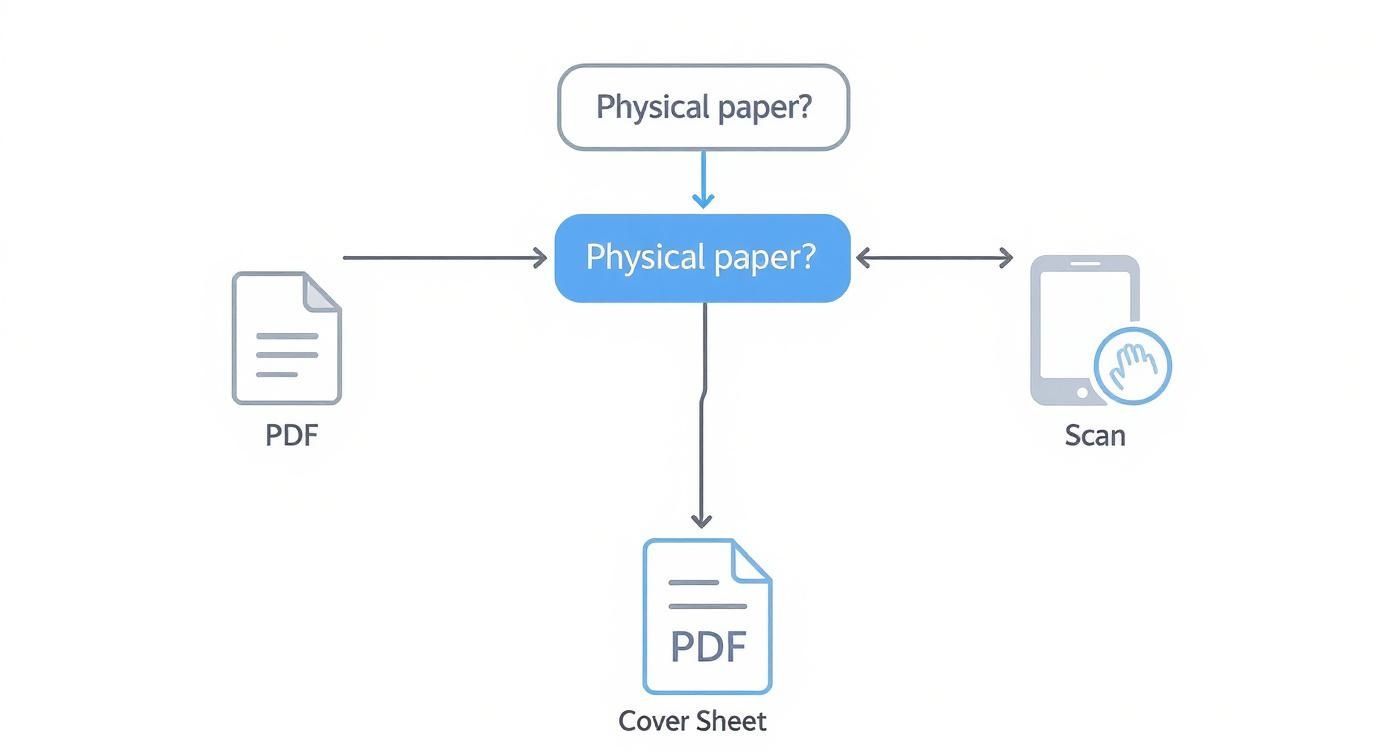
As you can see, the path from your initial document to a fax-ready file is pretty direct, always ending with that all-important cover sheet to make sure it looks professional.
To use the email-to-fax feature, you just need to format the recipient's "To" address in a specific way. For example, you might type the destination fax number followed by the service’s domain, something like [email protected].
What’s really slick is how it handles the cover page. The email's subject line automatically becomes the subject on the fax cover sheet, and whatever you write in the body of your email populates the cover sheet's message area. It’s an incredibly smooth process that fits right into a routine you already know.
For a complete walkthrough, be sure to check out our detailed guide on how to fax via email.
Using Your Operating System's Built-In Tools
Another path you could take is using the tools that are already on your computer. If you're a Windows user, this means turning to the classic Windows Fax and Scan utility. This program has been a part of the operating system for ages and offers a direct way to send faxes—but there's a pretty big catch.
To make it work, you need a piece of hardware that most modern laptops simply don't have anymore: a fax modem. This is a physical device that connects your laptop to a telephone line. So, if you happen to have a landline and a modem lying around, you can actually set it up to send and receive faxes right from your desktop.
Key Takeaway: While using a built-in tool like Windows Fax and Scan lets you avoid subscription fees, the hardware requirement makes it pretty impractical for most people today. The sheer convenience of online services almost always outweighs the hassle of setting up a physical connection.
The leap from those old, clunky machines is significant. Faxing from a laptop has evolved by replacing bulky hardware with smart, internet-based services and software. Laptops with an internet connection can now bypass physical phone lines entirely, as services convert your digital files into fax-compatible formats and transmit them through cloud servers. You can read more about the technological evolution of faxing on Britannica.
Ultimately, choosing between email-to-fax and a built-in OS tool comes down to your specific situation. For speed, convenience, and seamless integration with a service you're already using, email-to-fax is the clear winner. For the rare, occasional fax where you actually have all the required hardware, an OS utility might just get the job done.
How to Fix Common Digital Fax Problems
So, your digital fax didn't go through. It happens. Even with a reliable online service, transmissions can fail, but before you get frustrated, know that most of these hiccups are surprisingly easy to fix. The trick is understanding what went wrong in the first place.
When a fax fails, your service will shoot you a transmission report. Don't just archive it—this report is your best friend for troubleshooting. It’ll usually have an error code or a short message like "Busy Signal" or "No Answer" that tells you exactly what happened.
Decoding Failed Transmissions
A "Busy Signal" is the most common roadblock you'll encounter. This isn't a problem on your end. It just means the recipient's fax machine is tied up, either sending or receiving another document. The solution is simple: patience. Give it 10-15 minutes and then try resending.
Then there's the "No Answer" message. This one means the receiving machine never picked up the call. A few things could be going on here:
- Wrong Number: You might have a typo in the fax number. It's the most common culprit.
- Machine Issues: The receiving machine could be turned off, out of paper, or unplugged.
- Voice Line: You might be accidentally faxing a regular phone number instead of a dedicated fax line.
Before you do anything else, double- and triple-check the fax number you typed in. One wrong digit is all it takes. If the number is correct, you might need to give the recipient a quick call to make sure their machine is on and ready to go.
Key Takeaway: Failed faxes are rarely your fault. In my experience, over 90% of transmission failures are due to issues on the recipient's end—a busy line, a machine that's off, or just a simple wrong number.
Tackling Blurry or Unreadable Faxes
What about when the fax does go through, but the person on the other end says it looks like a smudged mess? This is almost always a quality issue with the original file you uploaded. A low-resolution image or a poorly scanned document will inevitably look blurry on the other side.
The fix is all in the prep work. Go back to your source document. If it's a scan, make sure you used a setting with high contrast to get a crisp, clean image. For digital files, a high-quality PDF is your best bet for preserving formatting and sharpness. A little extra care before you hit "send" ensures your document arrives looking professional and, most importantly, readable.
Common Questions About Faxing From a Laptop
Switching from a clunky machine to sending faxes from your laptop is a game-changer, but it's totally normal to have a few questions. The whole process feels different, especially when you're thinking about things like security and legal proof. Let's tackle some of the most common things people ask when they're getting started.
Getting these questions answered will help you feel confident that your important documents are being sent securely and professionally.
Is It Really Secure to Fax Sensitive Documents This Way?
Yes, and honestly, it's often much safer than using the old office fax machine. Think about it: a traditional fax spits out sensitive documents onto a tray for anyone to see. Online fax services are built with modern digital security in mind.
Reputable services use end-to-end encryption, which basically scrambles your data as it travels from your laptop to its destination. This creates a secure tunnel that prevents anyone from snooping on your files in transit.
The biggest security win is actually on the receiving end. Instead of a confidential medical record or a signed contract sitting in plain sight on a shared machine, incoming faxes land securely in your email inbox or a password-protected online account. Only you see them.
If you work in an industry like healthcare or law, just be sure to pick a service that is explicitly HIPAA-compliant. This ensures they meet the strict legal standards required for handling protected information.
Are These Laptop Faxes Actually Legally Binding?
Absolutely. A fax sent from your laptop through an online service carries the same legal weight as one sent from a traditional machine. The secret sauce is the verifiable proof of delivery you get afterward.
Every time you send a fax, the service generates a detailed transmission receipt. This is your official record, and it confirms everything you need for legal purposes:
- The exact date and time it was sent.
- A clear confirmation of a successful delivery.
- The recipient's fax number.
This kind of documentation is invaluable for legal contracts, official filings, or any time you need undeniable proof that a document was sent and received. In many ways, the digital paper trail from online faxing is far more reliable and easier to store than a flimsy, printed confirmation page.
So, Do I Still Need a Phone Line Hooked Up to My Laptop?
Nope, not at all! This is probably one of the best parts of learning how to fax from a laptop. You can ditch the dedicated phone line entirely.
Online fax services use a technology called Fax over IP (FoIP), which just means they send the fax data over your internet connection. As long as your laptop is connected to Wi-Fi or an ethernet cable, you're good to go. The service handles the technical wizardry of converting your PDF into a signal that a standard fax machine can receive on the other end. It completely frees you from the cost and hassle of maintaining an old analog phone line.
Ready to send your first fax without the fuss? With SendItFax, you can send secure, legally valid faxes right from your browser in minutes. No account, no subscription, just simple, reliable faxing. Try SendItFax now!
Related Posts
What Is a Fax Cover Sheet and Why It Still Matters
Fax Number Lookup: How to Find and Verify Any Fax Number