Send a Fax From Computer Free A Practical Guide
Absolutely. You can send a fax from your computer for free using a browser-based service like SendItFax. These platforms are straightforward: you upload your document, punch in the recipient's fax number, and send it off right from your web browser. No account setup, no fax machine needed.
Why You Still Need to Send Faxes From Your Computer
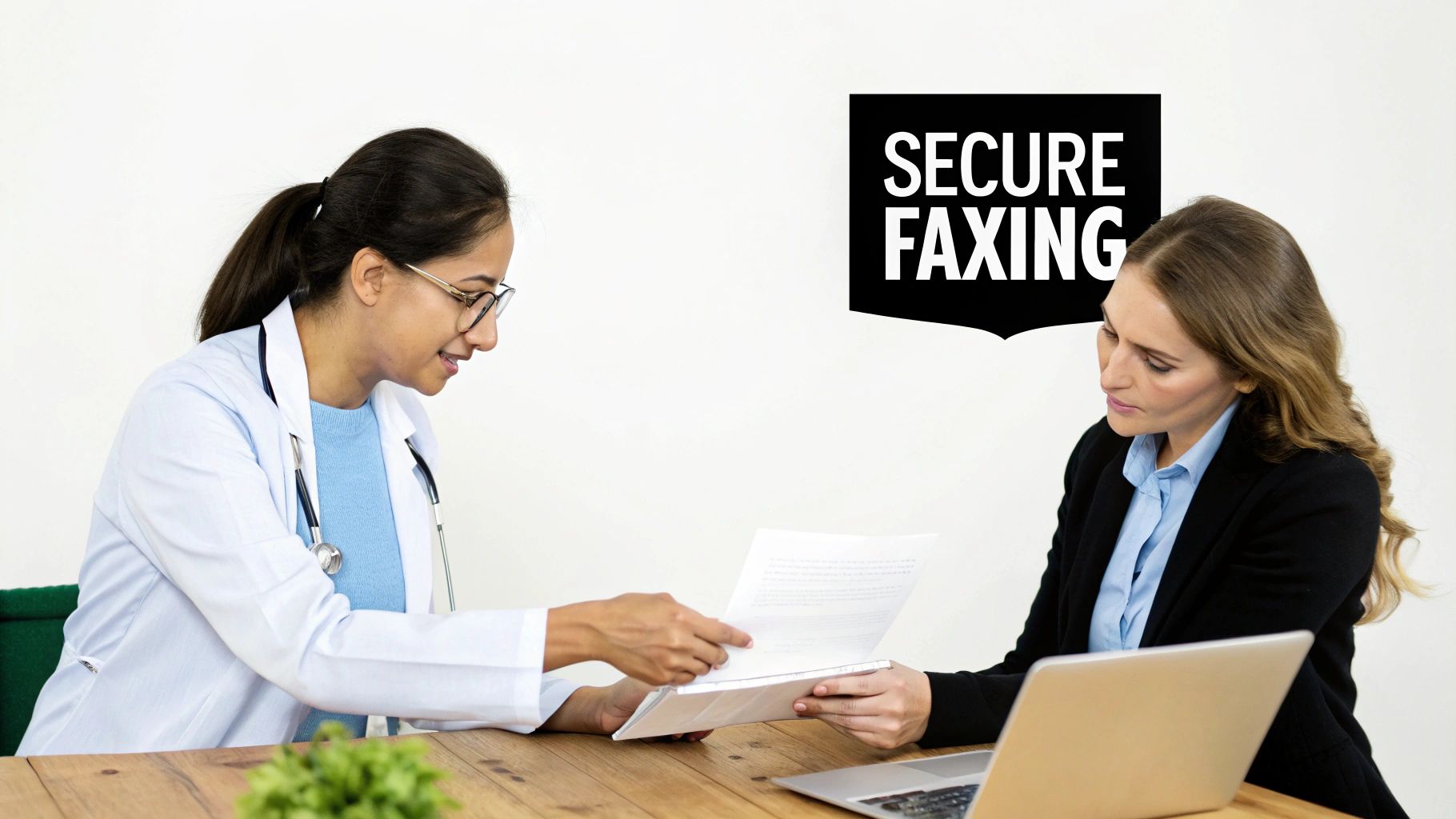
I get it—faxing feels like a technology from a bygone era. But in the professional world, it’s still surprisingly relevant and, in some cases, non-negotiable. While we use email for almost everything, faxing maintains a unique role because of its security and legal weight. It's not a relic; it's a specialized tool.
Fields like healthcare, law, finance, and government still count on faxing every single day. The reason is simple: a fax transmission is often treated as a legally binding document, and its direct point-to-point connection is considered more secure than email for transmitting highly sensitive data.
This makes it the preferred method for things like:
- Signed contracts and official legal paperwork
- Patient medical records and insurance claims
- Government forms and applications
- Purchase orders and critical invoices
The Modern Way to Fax
This is exactly why knowing how to send a fax from your computer for free is such a useful skill to have. Online fax services elegantly bridge the gap between this old-school, trusted technology and our modern digital lives. Forget trying to find a working fax machine at a local shop—you can send your most important documents right from your laptop or desktop.
You might be surprised by its staying power. Back in 2017, the US alone saw about 200 billion fax pages sent, which works out to roughly 6,000 pages every second. It’s a clear sign that this communication method is far from obsolete. You can read more about the resilience of the faxing industry to see just how embedded it still is.
Taking this digital approach is just smarter. It's incredibly convenient, secure, and saves you money. You cut out the costs of paper, ink, and a dedicated phone line, making the whole process cleaner and far more efficient. For a one-off document or even occasional business use, it’s the most practical way to handle official transmissions.
Getting Your Documents Ready for Digital Faxing
Before you can fire off that fax from your computer, you've got to make sure your document is prepped and ready to go. Think of it this way: you wouldn't send a blurry, crumpled piece of paper through a traditional fax machine and expect it to come out clean on the other side. The same principle applies here. The online service needs a clear, compatible file to do its job properly.
Most free services, including SendItFax, are built to handle a few key file types really well. Sticking with these formats is the easiest way to avoid a frustrating "transmission failed" error.
Common File Formats for Online Faxing
Here’s a quick rundown of the most common file types you'll encounter and why they work.
| File Format | Commonly Accepted? | Best Practice Tip |
|---|---|---|
| PDF (.pdf) | Yes (Best Choice) | This is the gold standard. It locks in your formatting, so what you see is exactly what they get. |
| Word (.docx, .doc) | Yes | Great for text-based documents like letters, resumes, or reports. |
| Image (.jpg, .png) | Yes | Ideal for sending a quick scan of a signed document, a receipt, or a photo ID. |
Basically, if you can save it as a PDF, you're in great shape. Almost any program you use today, whether it's a word processor or an image editor, has a "Save As" or "Export to PDF" option. It's a simple step that solves 99% of format-related headaches.
How to Ensure a Clear Transmission
Getting the file type right is the first step, but the clarity of your document is just as important. A digital fax service takes your file and converts it into a black-and-white image to send over the phone lines. If the source file is fuzzy or low-contrast, the received fax will be even worse.
The best way to guarantee a readable fax is to use high-contrast documents. Black text on a clean white background is your safest bet. Avoid using fancy fonts, light gray text, or colorful backgrounds, as they often translate poorly and can make the final fax look like a smudged mess.
For more in-depth advice, our complete guide on how to send a fax online covers everything you need for a perfect transmission.
Pro Tip: Here’s a quick quality check I always do. Before uploading, zoom in on your document to 200%. If any text or signatures look pixelated or blurry on your screen, you can bet they will be unreadable when the fax arrives.
A Walkthrough of Sending a Free Online Fax
With your document prepped and ready to go, it’s time for the easy part: actually sending it. Forget the clunky buttons and weird screeching noises of an old fax machine. Sending a fax from your computer is a straightforward process, and most free services like SendItFax use a similar, intuitive layout.
When you land on the sending page, you’ll typically find a simple form. This is your entire control panel, where you'll plug in all the details for the transmission.
Entering Sender and Recipient Details
First things first, you'll need to enter your own information, usually just your name and email address. That email is important—it's how the service will let you know if your fax went through successfully.
Next, type in the recipient’s name and, most importantly, their fax number. For faxes going to the U.S. or Canada, just stick to the 10-digit number. No need for dashes or parentheses. If you're sending a fax overseas, you’ll have to add the country code first, like +44 for a number in the United Kingdom.
I can't stress this enough: double-check that fax number. A single mistyped digit is hands-down the most common reason a fax fails to send.
This whole digital approach is why the online fax market is on track to hit $1.2 billion by 2025. People and businesses are clearly embracing these simpler, more secure solutions. If you're curious, you can discover more insights about the online fax market and see just how fast it's growing.
Uploading Your Document and Crafting the Cover Page
Alright, now look for a button that says something like "Choose File" or "Upload Document." Clicking this will let you browse your computer and select the PDF or DOCX file you prepared earlier. After you select it, you should see the file name appear on the form, which is your confirmation that it's attached.
The infographic below really nails the workflow for getting your documents in order before you even reach this point.
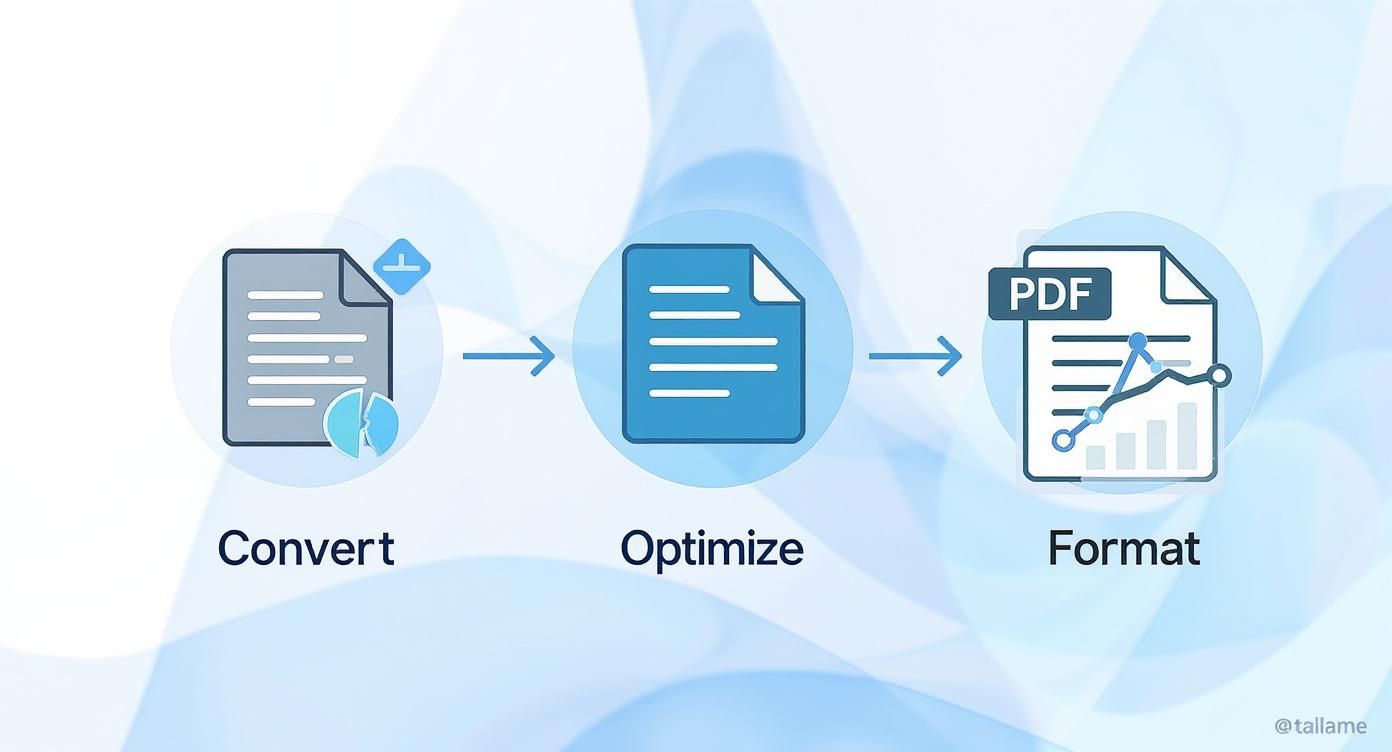
Think of that prep work—converting, optimizing, and formatting—as the foundation for a perfect transmission.
Finally, you’ll see an area to add a cover page message. Don't skip this. A cover page is basically the "subject line" for your fax, telling the recipient who it's from and why it's important.
A solid, professional cover page should always include:
- The recipient's full name and department.
- Your full name and contact info.
- A clear, concise subject (e.g., "Signed Contract for Project Alpha").
- The total page count, including the cover page itself.
Taking 30 seconds to fill this out can be the difference between your document getting immediate attention and it getting lost in a pile on a shared office machine. It just looks more professional and helps get your fax routed to the right person quickly.
While some platforms also let you send faxes right from your email, I find that using the web form gives you much better control over the cover page. If that email method sounds interesting, though, you can learn all about how to fax via email in our other guide.
Once all the fields are filled and your document is attached, all that's left is to hit that send button.
Knowing the Limits of Free Fax Services
https://www.youtube.com/embed/vwF_GI5AWh0
The ability to send a fax from computer free is a lifesaver, but it's important to go in with your eyes open. These services are businesses, so they naturally have some ground rules to keep their platforms running without a fee. Understanding these trade-offs from the start will save you from hitting a roadblock when a deadline is looming.
The first and most common limit you'll run into is the page count. Most free providers will cap a single fax at three to five pages, and that's often not including the cover sheet. This works perfectly for sending a signed contract page or a quick invoice, but it’s a non-starter for a lengthy legal document.
Daily Sending Caps and Provider Branding
On top of page limits, almost every free service puts a cap on how many faxes you can send per day. Usually, you’re looking at a maximum of two to five faxes in any 24-hour period. For the average person who only faxes once in a blue moon, that's plenty. But if you need to send the same document to several people, you’ll hit that limit fast.
Another thing to expect is branding. To cover their costs, free services will typically add their logo or a small ad to your cover page. For personal faxes, it’s no big deal. For official business, however, it might not project the professional image you're going for.
Free fax services are fantastic tools for occasional, low-volume tasks. They're built for sending a few pages here and there, not for handling the demands of a busy office or high-stakes communication.
Most free online fax services in 2025 are designed for this kind of light use, often limiting you to just a few faxes per day within the US and Canada. You can see how different providers stack up by checking out some reviews of top free fax providers.
Finally, and this is a big one, free services are almost exclusively for sending faxes. If you need to receive a fax, you'll need a dedicated fax number. That's a feature that's pretty much always reserved for paid plans. For a more detailed guide, take a look at our post on how to send a fax online for free.
What Happens After You Send Your Fax
So, you’ve filled out the form, attached your document, and clicked that big "Send" button. What now? This is where the magic of online faxing really shines, because you’re not left wondering if your document made it to its destination.
Unlike dropping a letter in a mailbox, you get a clear confirmation.
Keeping an Eye on Your Fax's Journey
Once your fax is on its way, the service gets to work. It dials the recipient's number, waits for that classic fax machine handshake (that familiar screeching sound), and then transmits your document page by page. This whole process usually only takes a few minutes.
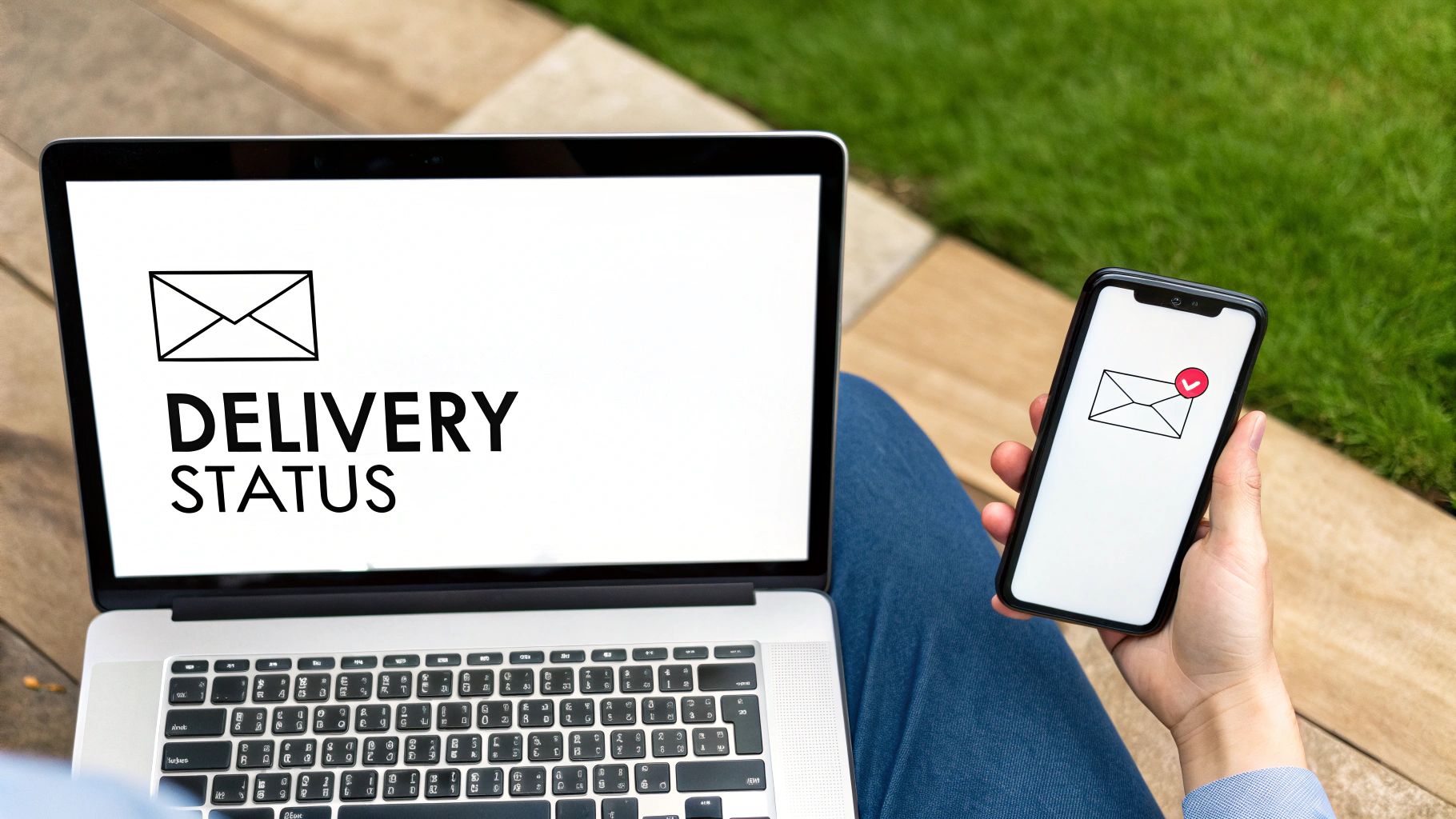
The best part? You don't have to babysit it. The service will send you an email notification letting you know the outcome. You can expect one of two messages:
- Success: A confirmation email will land in your inbox, telling you the fax was delivered successfully. This email is your digital receipt—proof that your document arrived.
- Failure: If the transmission doesn't go through, you'll get an alert explaining why. This is incredibly helpful because it's usually for a simple, fixable reason.
Troubleshooting a Failed Fax
Getting a "failed" notification can be frustrating, but it’s rarely a major issue. In my experience, it almost always comes down to one of these common culprits:
- The recipient's line was busy. This happens all the time, especially in busy offices. The simple fix is to wait a few minutes and try sending it again.
- You mistyped the fax number. It's the number one reason for failure. Go back and carefully double-check every single digit before you resend.
- It was answered by a human voice. Someone might have accidentally picked up the phone on the other end. Just like a busy signal, the solution is to wait a bit and retry.
- The receiving machine is out of paper or ink. This is an old-school problem, but it still happens. If you’ve tried a couple of times and it keeps failing, it might be worth calling the recipient to let them know.
Most modern online fax services, including SendItFax, will automatically try to resend the fax a few times if they hit a busy signal. This behind-the-scenes effort solves the problem for you more often than not.
Commonly Asked Questions About Free Online Faxing
If you're new to sending faxes from your computer, you probably have a few questions. Here are some of the most common ones I hear, along with straightforward answers.
Is It Secure to Send Documents This Way?
Yes, it's generally very secure. Reputable online fax services use SSL encryption to protect your document as it travels from your computer to their servers. The final leg of the journey—the actual transmission over phone lines—is also inherently secure.
That said, for extremely sensitive information, it's always smart to review the service's privacy policy. Also, be aware that free services often place their own branding or small ads on the cover page, which might not be ideal for every professional situation.
Can I Receive Faxes on My Computer for Free?
Receiving faxes is a feature that's almost exclusively part of paid plans. Free services are designed for sending only because receiving requires a dedicated fax number that's assigned just to you. While some providers might offer a free trial that includes a temporary number, it's not a sustainable long-term solution for getting faxes.
What Should I Do If My Document Is Too Long for the Free Limit?
If your document is longer than the typical three– to five-page limit, you could split it into multiple faxes. However, that can be a real hassle for the person on the receiving end.
Honestly, the most practical solution is to just upgrade to a low-cost paid plan for that one fax. These plans give you much higher page limits, remove any branding, and offer a more professional experience for larger or more critical documents.
Got Questions About Faxing From Your Computer?
Even with a simple process, a few questions always pop up the first time you try to send a fax from your computer for free. Let's tackle some of the most common ones I hear.
How Secure Is It, Really?
This is a big one, and the short answer is: yes, it’s generally quite secure. Any reputable online fax service, including SendItFax, uses SSL encryption. Think of it as the same security that protects your credit card information when you buy something online. It scrambles your document from the moment it leaves your computer until it reaches the fax service's servers.
From there, the fax travels over traditional phone lines, which are inherently secure. That's a major reason why industries like healthcare and legal still lean on faxing for sensitive documents.
One thing to keep in mind, though: free services often add their logo or a small ad to the cover page. For most things, this is no big deal. But if you're sending a formal business proposal or a legal document, it might not look as professional as you'd like.
Can I Get Faxes on My Computer for Free, Too?
Unfortunately, receiving faxes is almost always a feature you have to pay for. Free services are built for sending documents, not receiving them.
Think of it this way: to receive a fax, you need a dedicated phone number that belongs only to you, and maintaining that number costs the service provider money.
You might find a service offering a free trial that includes a temporary number for receiving faxes, but it’s not a permanent solution. For all practical purposes, free online faxing is a one-way street.
What If My Document Is Too Long for the Free Limit?
You’ve got a ten-page contract, but the free service caps you at five pages. What now?
While you could split the document into two separate faxes, that's often a hassle for the person on the other end. Imagine them trying to piece together two different transmissions—it’s not a great experience.
The best move here is usually to opt for a one-time paid send or a temporary upgrade to a low-cost plan. This lets you send the entire document at once, removes any ads, and gives you a more professional-looking result.
Ready to send a longer fax without the branding? With SendItFax, you can send up to 25 pages with priority delivery for just a small one-time fee. Try it now at https://senditfax.com.
Related Posts
What Is a Fax Cover Sheet and Why It Still Matters
Fax Number Lookup: How to Find and Verify Any Fax Number