How to Fax from Mac Without a Fax Machine
It might seem old-fashioned, but sending a fax from your Mac is actually pretty simple these days, and you definitely don't need a clunky machine sitting in the corner. The most direct route is using a secure, browser-based service. You just upload your file, pop in the recipient's info, and send it on its way over the internet.
Why Bother Faxing from Your Mac in 2024?
Let's be honest, faxing feels like a technology that should have gone the way of the dinosaur. And yet, it's still a surprisingly vital tool in a lot of industries. While we all use email and Slack for everyday chats, faxing still has a firm grip in situations where security, legal weight, and a verifiable paper trail are absolute must-haves. For Mac users working in these fields, figuring out how to send a fax isn't just a random task—it's often a frustrating necessity.
Who Still Faxes, Anyway?
It turns out, a lot of important people do. Certain fields rely on fax because of how it works. The transmission travels over a dedicated phone line, creating a direct connection that’s much harder to intercept than an email bouncing from server to server.
- Healthcare: It's all about privacy here. Doctors, clinics, and hospitals frequently fax patient records, lab results, and prescriptions to stay compliant with strict privacy laws like HIPAA. A fax creates a clear, documented trail that the information was sent and received.
- Legal: Lawyers and their teams depend on faxing for time-sensitive documents that need a signature—think contracts, court filings, or affidavits. A faxed signature often carries legal weight, and that little confirmation page is solid proof of delivery.
- Government & Finance: When you're dealing with official correspondence, loan applications, or compliance paperwork, there's no room for error. Government agencies and banks use fax to ensure document integrity and maintain that all-important verifiable trail.
The Modern Mac User's Headache
The problem for most of us isn't why we need to fax; it's how. Let's face it, nobody has a physical fax machine anymore. They're big, they need their own phone line, and they just don't fit into a modern home office. This creates a real bottleneck when you have an urgent document that needs to be sent right now.
You’ve been there: the signed contract is sitting on your desktop, the deadline is looming, but you have no physical way to send it. That’s the exact gap that modern, browser-based fax services were designed to fill.
And this isn't a niche problem. The global market for fax services is surprisingly massive—it was valued at $3.31 billion in 2024 and is still growing. That's because industries that can't compromise on reliability continue to trust it. In some healthcare environments, for example, up to 90% of communication still happens over fax. If you want to dive deeper, you can explore the fax market growth on ResearchAndMarkets.com. All this just goes to show why knowing how to send a fax from your Mac is still a surprisingly practical skill to have.
The Easiest Way to Send a Fax from Your Mac
Let's be honest, when you need to fax something from your Mac, you want it done fast. You don't have time to dig up an old fax machine or mess with complicated software. The good news is, you don’t have to. The quickest path is using a simple, secure web service right from your browser.
This whole approach turns your Mac into a fax machine, minus the clunky hardware and confusing setup.
Services like SendItFax are built for this exact purpose. You can skip the whole account creation and password dance. Just visit the site, pop your document in, and send it off. It’s perfect for those one-off tasks, like sending a signed contract to a client or a form to a government office that still lives in the analog world.
Getting Your Document Ready
First things first, you need your document. Most online fax services play nicely with the usual suspects: PDF, DOC, and DOCX files. So, whether you’ve just finished a document in Pages or have a PDF saved on your desktop, you’re good to go. If you're using Pages, just export it as a PDF or Word file first.
The SendItFax homepage gets straight to the point with a clean, drag-and-drop interface.
You can literally just pull the file from a Finder window and drop it right into the browser. It’s designed to be quick.
Once the file is there, the next step is plugging in the details for you (the sender) and the person you're faxing. The fields are all standard, so there are no surprises.
Filling Out Sender and Recipient Details
This part is all about accuracy. Getting these details right ensures your fax lands in the right hands.
- Recipient’s Info: You’ll need their name and, most importantly, their fax number. Double-check that number. A single wrong digit is the number one reason faxes fail to send. For the US and Canada, you usually don't need the country code, but it's always smart to confirm the format if you're unsure.
- Your Info: Add your name and a valid email address. That email is non-negotiable—it's where the service will send your delivery confirmation. You'll also be asked for your phone number, which is helpful for the recipient if they need to contact you.
Your confirmation email is your proof of delivery. Think of it as the digital version of that little printed receipt you'd get from an old-school fax machine. Make sure you use an email you actually check.
Adding a Professional Cover Page
Don't skip the cover page. It’s not just a formality; it gives the person on the other end immediate context. It tells them who the fax is from, who it's for, and why they should care.
Most web services give you a spot to add a custom message. Something simple works best.
For example, a quick note like, "Here is the signed lease agreement we discussed. Please let me know you've received it," or "Attached are the requested medical records for Jane Smith." This little step prevents your important document from getting lost in a pile.
While some paid services let you send a fax without a cover page, including one is almost always the right move. For a deeper dive into the best practices, you can learn more about how to send a fax online and why these details are so important.
After you've filled everything out, you just hit send. The service takes over from there, converting your file and sending it across the phone lines. In just a few minutes, an email will pop into your inbox confirming that your fax was sent successfully. And that’s it—a seamless process that started and ended right on your Mac.
Choosing the Right Faxing Plan For Your Needs
Not all faxing needs are the same, and picking the right plan usually boils down to your specific situation. It’s less about just saving money and more about matching the right tool to the task at hand. Often, the decision comes down to document length, how professional you need to look, and urgency.
This visual guide breaks down the core steps for sending a fax from your Mac, no matter which plan you're on.
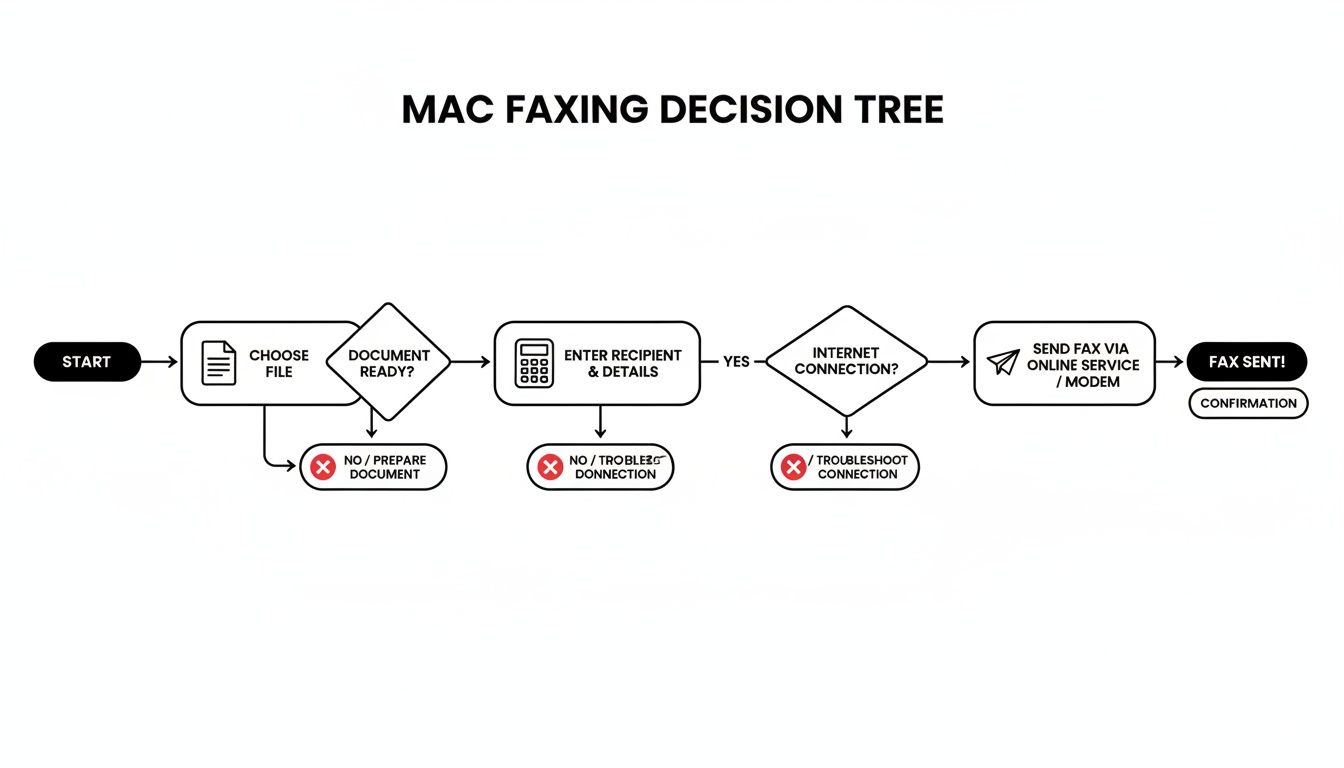
As you can see, the process is pretty straightforward: grab your document, pop in the details, and hit send. Simple.
When Free Faxing Makes Sense
The free option is absolutely perfect for those quick, one-off tasks where a branded cover page isn't a deal-breaker. Think of it as the ideal tool for personal errands.
For instance, you might be:
- A student sending a signed financial aid form to their university.
- Someone submitting a single, non-urgent document to a government agency.
- A parent who needs to quickly fax a signed permission slip for a kid's school trip.
In these situations, the main goal is just getting the document where it needs to go. A small service logo on the cover page is a pretty minor trade-off for a completely free fax.
Key Takeaway: The free tier is your go-to for casual, personal faxes that are short and not time-sensitive. It gets the job done without costing a dime.
Stepping Up to a Low-Cost Plan
For just a couple of dollars, a low-cost plan like the "Almost Free" option unlocks some serious professional advantages. This tier is built for those times when presentation and extra features really matter.
Imagine a small business owner sending a multi-page contract to a new client. A clean, unbranded look is essential to maintain a professional image. Or picture a healthcare professional transmitting sensitive patient referrals; priority delivery ensures the document gets processed faster, which can be critical. If you want a deeper dive, our guide to the cheapest online fax service explains how these small upgrades deliver huge value.
Here's a quick comparison to help you choose the right SendItFax plan for what you need to do right now.
SendItFax Free vs Almost Free Plan Comparison
| Feature | Free Plan | Almost Free Plan ($1.99) |
|---|---|---|
| Page Limit | Up to 3 pages + cover | Up to 25 pages + optional cover |
| Cover Page Branding | Includes SendItFax branding | Completely brand-free |
| Delivery Speed | Standard queue | Priority delivery |
| Best For | Personal, one-off documents | Business, multi-page, or urgent faxes |
Ultimately, choosing your plan is all about looking at your immediate needs. For a simple, one-and-done task, free is fantastic. But for anything that needs a more professional touch or involves more than a few pages, that small investment in a low-cost plan is money well spent.
A Look at Other Ways to Fax From a Mac
While using a simple web service is usually the easiest way to send a fax, it's worth knowing about the other options out there. Frankly, looking at the alternatives often highlights just how convenient a browser-based tool can be, especially if you only send a fax once in a blue moon.
The Old-School Method: macOS "Print to Fax"
Believe it or not, macOS once had a built-in "Print to Fax" feature. It sounds perfect on the surface—a native solution right in the print dialog. But this is really a ghost of a bygone era, a time when Macs had internal modems and everyone had a landline phone jack next to their desk.
To get this fossil of a feature working today, you’d be on a real hardware hunt. You would need:
- An active telephone landline plugged into your Mac.
- An external USB fax modem, since no modern Mac includes one.
- The right drivers to get the modem and macOS to talk to each other.
For most people, this is a non-starter. The hassle and cost of tracking down and setting up the hardware turns a simple five-minute task into an expensive weekend project.
Dedicated Fax Apps on the App Store
Another path is to download a dedicated fax application from the Mac App Store. These apps can feel a bit more polished and sometimes integrate with your contacts, giving you a self-contained faxing hub right on your desktop.
The catch? This convenience almost always comes with a subscription. Most of these apps require a monthly or annual fee to keep your account and a dedicated fax number active. If you just need to send a single contract or a form once a year, getting locked into a recurring payment doesn't add up.
This is where the difference between a subscription and a pay-as-you-go service really stands out. For that one-off fax, an account-free service saves you from a commitment you just don't need.
These dedicated apps are great for businesses or professionals who regularly send and receive faxes. But for the average person, the setup and ongoing cost are complete overkill.
Why Online Faxing Is Still the Go-To
The fact that we're even discussing different faxing methods shows a surprising truth: faxing isn't dead. It’s still deeply integrated into many professional fields.
In fact, over 80% of businesses, from solo operations to huge corporations, still rely on faxing. The big change is that nearly 90% of organizations are now using or considering cloud-based online fax services. It's a massive shift away from clunky hardware. You can dive deeper into these trends by reading about the current state of the faxing industry on iFaxApp.com.
When it comes down to it, the best way to fax from your Mac depends entirely on how often you need to do it. For the overwhelming majority of people sending a document here and there, a simple web service that doesn't require an account is the most direct and budget-friendly choice. It lets you skip the hardware headaches of the old days and the subscription traps of modern apps.
Getting Your Fax Right: Best Practices for Secure Sending
Sending a fax isn't just a matter of clicking a button. To make sure your documents land safely, look professional, and get to the right person, a little prep work goes a long way. Think of it as the modern etiquette for a technology that still perfectly connects the digital and physical worlds.
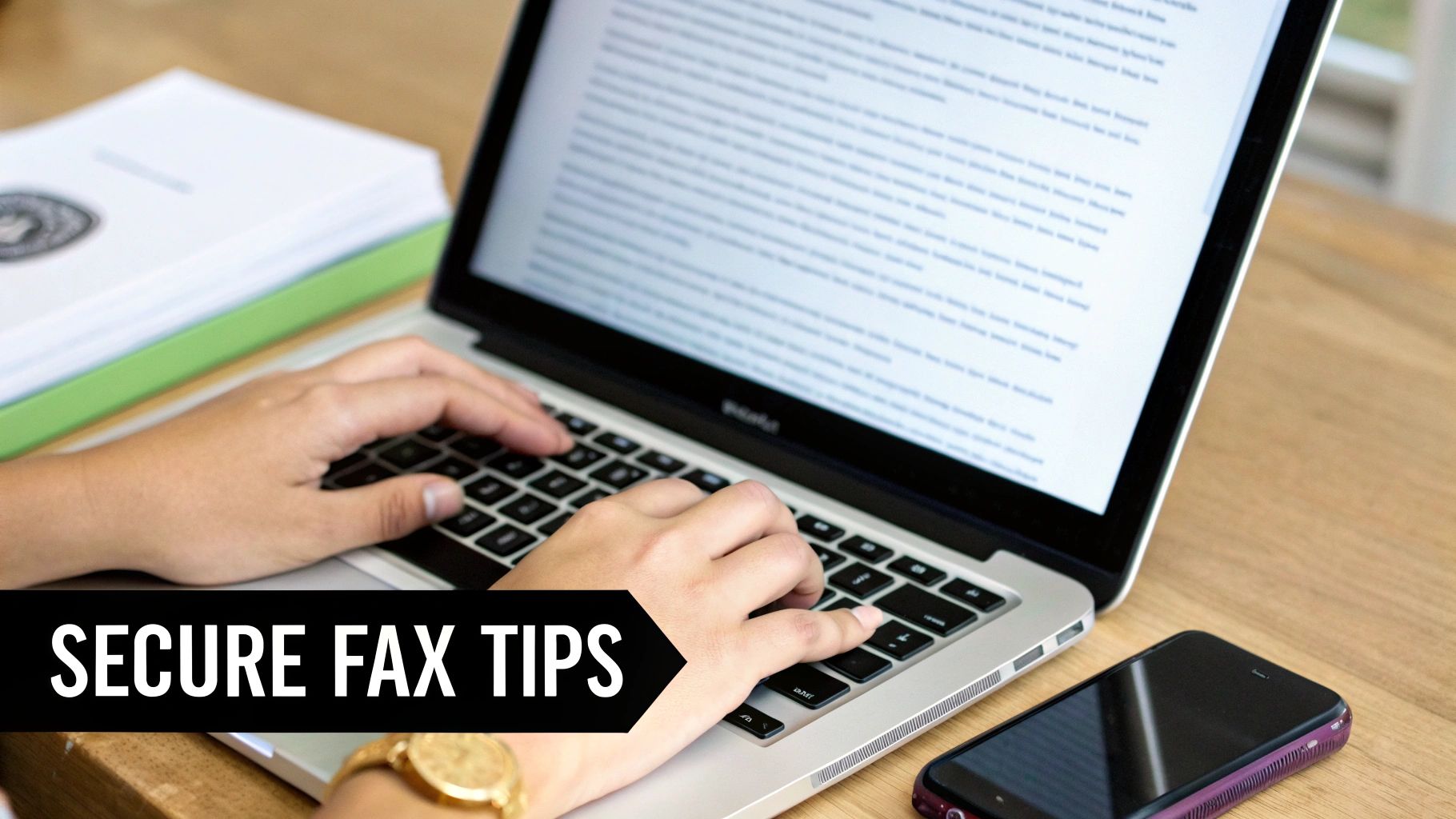
It all begins with the document itself. Remember, faxes are transmitted in black and white, which means high contrast is your best friend. Stick with clean, simple fonts like Arial or Helvetica. It's also smart to avoid light gray text or complex graphics, as they can turn into an unreadable smudge on the other end.
For the most reliable results, always save your document as a PDF. This format locks in your layout, ensuring what you see on your Mac is exactly what prints out of the recipient's machine.
Why You Should Never Skip the Cover Page
I can't stress this enough: always use a cover page. It's the very first thing the recipient sees and acts as a crucial routing slip, especially in a busy office environment. It instantly clarifies who sent the document, who it's for, and what it’s about.
A solid cover page should clearly state:
- Your contact details (name, phone number)
- The recipient’s name (and department, if you know it)
- A quick subject line (e.g., "Signed Agreement for Acct #54321")
- The total page count, including the cover page itself.
Taking 30 seconds to add this can be the difference between your sensitive document getting delivered immediately and it getting lost on a shared printer for hours.
Keeping Your Faxes Private and Secure
When you fax from your Mac using an online service, you're placing your trust in that platform. Always choose a reputable provider that uses strong encryption to shield your documents while they're in transit. A good sign is seeing payment processing handled by Stripe, which means your financial details are managed by a secure, industry-leading gateway.
For anyone working in fields like healthcare or law, confidentiality is everything. It's a shocking but true statistic that 70% of all healthcare communication still happens over fax. That number skyrockets to 90% for interactions involving electronic health records. You can read more about these surprising fax statistics in healthcare.
Pro Tip: Before you hit send, triple-check the recipient's fax number. One wrong digit could accidentally send confidential information to a complete stranger, creating a massive privacy headache. This is the single most effective way to prevent a data breach.
If you handle sensitive information—from legal contracts to patient charts—it pays to understand how your data is being transmitted. Taking a few minutes to read up on the core principles of fax security will give you peace of mind and help you stay compliant. By sticking to these practices, you can fax from your Mac with confidence and keep your information safe.
A Few Lingering Questions About Mac Faxing
Even when a process is simple, you're bound to have a few questions before you hit "send" for the first time. It's only natural, especially when you're moving away from old, clunky hardware to a slicker web-based method. I've heard these questions pop up time and again, so let's get them cleared up right now.
My aim here is to give you direct, no-nonsense answers so you can fax with total confidence.
Can I Actually Receive Faxes on My Mac This Way?
This is probably the most common point of confusion, so let's tackle it head-on. Pay-as-you-go services like SendItFax are built for one thing and one thing only: sending faxes. They're brilliant for firing off a document from your Mac quickly without getting roped into a subscription.
If you need to receive faxes regularly, you're looking at a different kind of tool. For that, you'd want a dedicated online fax service that gives you your own virtual fax number. Just know that these almost always come with a monthly fee.
Is It Really Safe to Send Sensitive Documents Online?
It is, provided you’re using a credible service. Any modern online fax platform worth its salt is built with security in mind, using encryption to shield your documents while they're in transit. Honestly, it's a huge leap forward from the old office fax machine, where your confidential papers could be left sitting in a tray for anyone to see.
For instance, a service like SendItFax handles its payments through Stripe, which is one of the most secure and trusted payment processors on the planet. This keeps your financial details locked down and handled separately from the fax transmission itself.
Your biggest contribution to security is simple: always, and I mean always, double-check the recipient's fax number before you send. That one small habit is your best defense against your private information ending up in the wrong hands.
What’s the First Thing I Should Do If My Fax Fails?
It's definitely frustrating when a fax doesn't go through, but the reason is usually pretty simple. The usual suspects are a typo in the fax number, a busy signal at the other end, or a problem with their machine—maybe it's out of paper or even switched off.
First things first: check the number you typed, digit by digit. If it’s correct, the best bet is to just give it 10-15 minutes and try again. The line was probably just tied up. Most paid services will also give you a delivery report with clues about what went wrong, which can make troubleshooting a lot easier.
Do I Need Any Special Software or Clunky Hardware?
Nope, and that’s the beauty of it. To fax from your Mac with a modern web service, all you need are two things you're already using: a good internet connection and a web browser like Safari, Chrome, or Firefox.
This whole approach is designed to let you sidestep all the old-school fax paraphernalia. You can completely forget about installing weird software, fighting with drivers, or hunting down a USB fax modem. It turns what used to be a technical headache into a simple task you can do right from your browser.
Ready to see for yourself? With SendItFax, you can get your documents sent straight from your Mac in just a couple of minutes—no account required. Give the fast, secure, and headache-free way to fax a try at https://senditfax.com.
Related Posts
Fax Cover Sheet Medical: HIPAA Guide for 2026
Best Online Fax Service for Personal Use: 7 Top Picks 2026