How to Fax From Computer A Modern Guide to Digital Faxing
Believe it or not, sending a fax from your computer is now just as easy as sending an email. The simplest way to do it is with an online fax service. You just upload your document, punch in the fax number, and click send. Think of it as a digital translator, converting your file into a signal that any old-school fax machine can understand and print.
The Modern Way to Fax From Your Computer
Faxing has come a long way from the screeching, paper-jamming machines tucked away in a corner office. Today, the ability to fax from computer is an everyday tool for countless professionals. Forget needing a dedicated phone line and a clunky piece of hardware—now you can send documents securely over the internet from absolutely anywhere.
This method is perfect for sending sensitive or official documents that require a secure, reliable transmission method, like:
- Signed contracts and important legal paperwork
- Confidential medical records and patient intake forms
- Official government or financial documents
This isn't some brand-new, untested technology. The jump from mechanical to digital faxing started way back in 1985 when a company called GammaLink introduced the GammaFax. This was the first computer fax board that let a PC talk to the global fax network. This long history is precisely why faxing from a computer is still a trusted and established communication method today. You can learn more about the history of fax technology and see how it has evolved.
Faxing Methods at a Glance
So, why have online services become the go-to choice? To really get it, it helps to see how they compare to the more traditional methods. Each has its pros and cons, but when it comes to pure convenience and modern features, the differences are night and day.
This table breaks down the key distinctions to help you decide which approach fits your needs.
| Feature | Online Fax Service | Traditional Fax Machine | Fax Modem |
|---|---|---|---|
| Hardware Required | None (just a computer) | Fax machine, phone line | Fax modem, phone line |
| Accessibility | Anywhere with internet | Fixed physical location | Fixed physical location |
| Ease of Use | Simple web interface | Manual dialing and feeding | Requires software setup |
| Cost | Low monthly or per-fax fee | Machine, ink, paper, line | Modem, phone line costs |
As you can see, the requirements and flexibility vary quite a bit.
Key Takeaway: For the vast majority of users, an online fax service strikes the perfect balance of convenience, affordability, and modern functionality. It completely removes the need for physical hardware and lets you manage faxes with the same ease as checking your email.
Sending Your First Fax With an Online Service
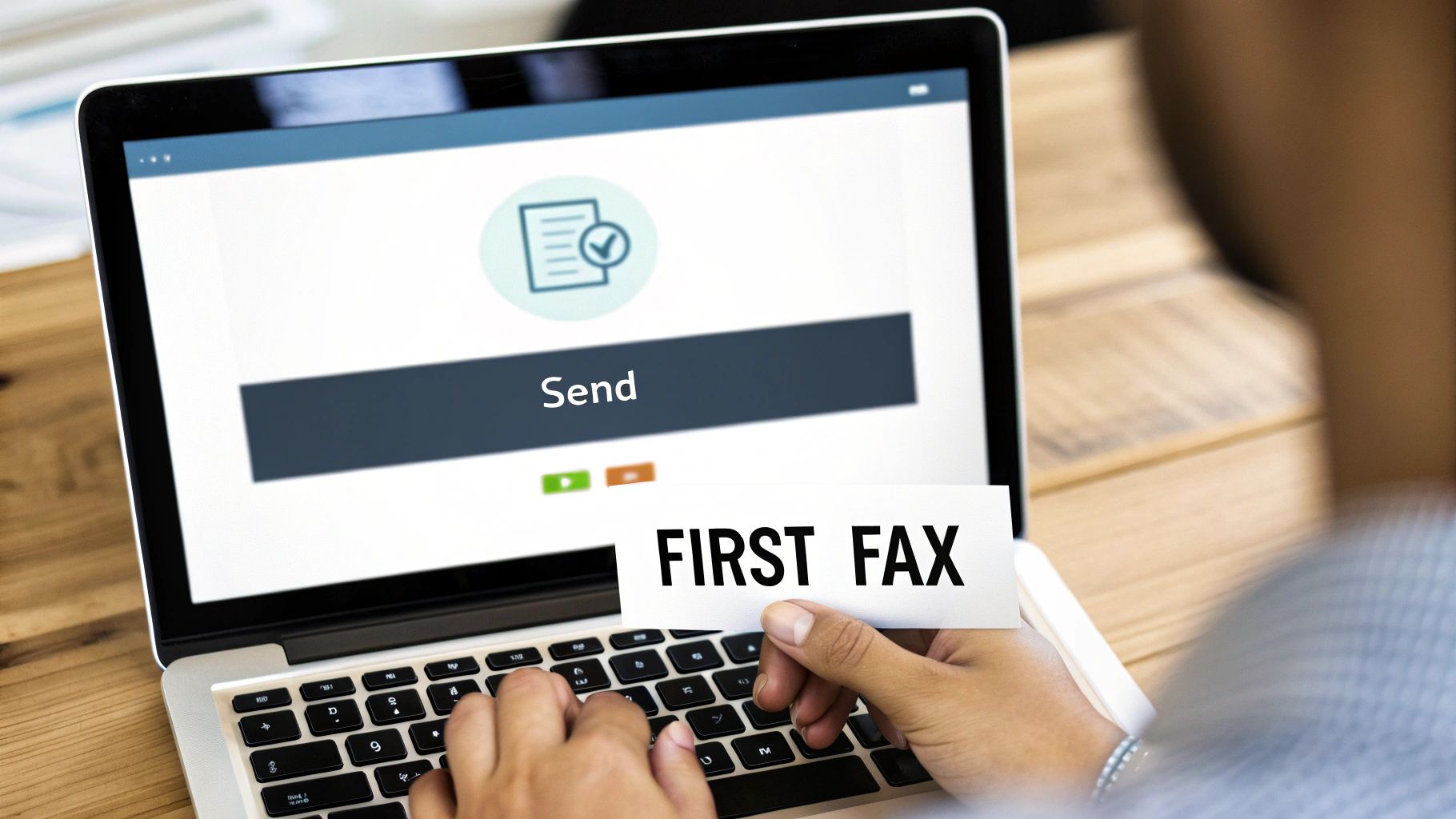
If you think sending a fax from your computer is going to be complicated, I have good news. It's surprisingly straightforward. If you've ever attached a file to an email, you're already 90% of the way there.
Let’s run through a common scenario. Imagine you’re a freelance designer who just landed a project with a government agency. You’ve signed the contract, but they need a hard copy sent via fax for their records—a classic requirement. You have the signed PDF on your laptop and need to send it securely and get proof it was delivered.
This is the perfect job for a web-based service like SendItFax, especially since you can often send a one-off fax without creating an account.
The Sending Process in Action
First things first, just pull up the online fax service in your web browser. A good service will have a clean, intuitive interface that feels a lot like filling out a shipping label online. No guesswork needed.
You'll see clearly marked fields for the recipient's information and your own. Getting these details right is important, as this is what populates the cover page and tells the person on the other end who the fax is from.
The layout guides you through the three essential parts: who it's going to, what you're sending, and who it's from.
After you've put in the numbers and names, it’s time to upload your document. In our example, you’d just browse your computer and select that signed contract PDF. Most services are built to handle the file types you use every day.
You can almost always count on support for:
- PDF (.pdf): This is the best choice for documents where formatting matters, like contracts.
- Microsoft Word (.doc, .docx): Great for sending letters or reports.
- Image Files (.jpg, .png): Handy if you've scanned a physical document with your phone.
A Quick Tip from Experience: Always double-check international fax numbers. They need a country code (like +44 for the UK) followed by the local number. I've seen more faxes fail from a simple formatting error here than almost any other reason.
Finalizing the Details and Hitting Send
Once your file is attached, you'll usually see an option to add a cover page. For our contract scenario, this is a must. It's the perfect place to add a quick note like, "Attached is the signed contract for Project Alpha. Please confirm receipt." It provides instant context and looks professional.
All that’s left is to hit "Send." At that point, the service does all the heavy lifting. It converts your digital file into a format that fax machines understand and dials the recipient's machine over the phone network. You've just learned how to fax from computer without needing any special hardware.
Within a few minutes, an email should land in your inbox. This is your confirmation receipt, telling you whether the fax went through successfully or if it hit a snag, like a busy signal. For your records, this email is just as good as the printed confirmation sheet from an old-school fax machine.
To see how different online fax platforms compare, you can find a deeper dive into how to send a fax online that explores more features and services.
Preparing Your Documents for a Perfect Send
What you do before you hit "send" is just as crucial as the fax transmission itself. Getting your documents ready is the secret sauce to making sure the person on the other end receives a clean, professional, and perfectly readable file.
Think of it this way: a few minutes of prep work can save you from the headache of a failed transmission. It prevents common frustrations like blurry text, missing pages, or jumbled information, ensuring your message lands exactly as you intended.
Why Your Cover Page Still Matters
A fax cover page isn't just some old-school formality; it’s your professional handshake. It tells the recipient who you are, what you’re sending, and—most importantly—how many pages they should expect. This little detail is critical for confirming they got the whole document.
Without one, your important paperwork could easily get lost in the shuffle on a shared office machine.
For a cover page to do its job, it needs a few key details:
- Your Info: Your name, company, and a contact phone number.
- Recipient's Info: The person's name and their fax number.
- The Basics: The date and a clear subject line (e.g., "Signed Contract for Project Alpha").
- Page Count: Always include the cover page in the total (e.g., "5 pages, including cover").
My Two Cents: Keep the message on your cover page short and sweet. Its job is to provide context, not to be the main event. Something as simple as "Please find the attached invoice" is all you need.
Getting Your Files Fax-Ready
Here’s something to remember: fax technology, even the modern digital kind, still boils down to sending a black-and-white image. Because of this, some things just don't translate well. Low-resolution photos can turn into a pixelated mess, and colorful backgrounds often become solid black blobs that swallow your text.
To sidestep this, keep your documents high-contrast and simple. Stick with a clean, standard font like Arial or Times New Roman in black, set against a plain white background. This simple trick ensures maximum readability and a professional look.
The absolute best format for online faxing is, hands down, a PDF. It’s the universal standard for a reason. A PDF locks in your layout, fonts, and formatting, so what you see on your screen is exactly what they’ll see on theirs.
While many services accept Word files, I always recommend converting to PDF first to be safe. If you're not sure how, our guide on how to convert Word documents to PDF walks you right through it. Taking that one extra step guarantees a perfect result every time.
Exploring Different Ways to Fax From a Computer
While online fax services are often the easiest route, they're not the only game in town. It's worth knowing the other options, as the best method often depends on the hardware you have on hand or simply your personal workflow.
Think of these alternatives as different tools in your communication kit. Each one provides a unique bridge between your digital files and the traditional fax network.
Using Email to Send a Fax
One of the slickest ways to send a fax is with the email-to-fax feature that many online services offer. This approach marries the familiar comfort of your email inbox with the backend power of a dedicated faxing platform. Honestly, it's brilliant in its simplicity.
You just compose an email as you normally would and attach the document you want to send—a PDF, a Word doc, you name it. The only real trick is in the "To:" field. Instead of a person's email, you'll use a special address provided by your fax service.
It usually follows a simple formula:
- Recipient's Fax Number: 18005551234
- Service's Domain: @senditfax.com
- Final Email Address:
[email protected]
Once you hit "Send," the service does all the heavy lifting. It grabs your email, converts your attachment into a fax-friendly format, and sends it over the phone lines. It's a fantastic solution for anyone who practically lives in their email and can't be bothered to log into another website.
Faxing With a Modem or All-in-One Printer
If you still have a landline kicking around, you can go old-school. These methods require specific hardware, but they're still perfectly functional and can be a good fit for certain situations.
Windows Fax and Scan
Believe it or not, Windows has a built-in utility that can turn your PC into a fax machine. The big catch? You need a fax modem—a piece of hardware that physically connects your computer to a phone line. If you're one of the few who still have that setup, you can send documents right from your desktop.
Mac's Built-in Faxing
Apple users have a similar option. macOS has a native print-to-fax feature where you can simply choose "Fax" as your "printer" from the print dialogue. But just like with Windows, it’s a no-go unless your Mac is tethered to a phone line with a modem.
Multifunction Printers
This is a much more common scenario. Most modern "all-in-one" printers have faxing built right in. You can use the printer’s desktop software to send a digital file directly, or you can scan a physical document and fax it—all using the printer's connection to the phone line. It effectively turns your computer and printer into a single, cohesive faxing unit.
The Bottom Line: These hardware-based methods absolutely work, but they chain you to a specific location and a physical phone line. You lose the incredible flexibility of online services, which let you fire off a fax from a coffee shop, an airport, or anywhere else with an internet connection.
No matter which method you end up using, this checklist covers the essential prep work to make sure your fax goes through smoothly.
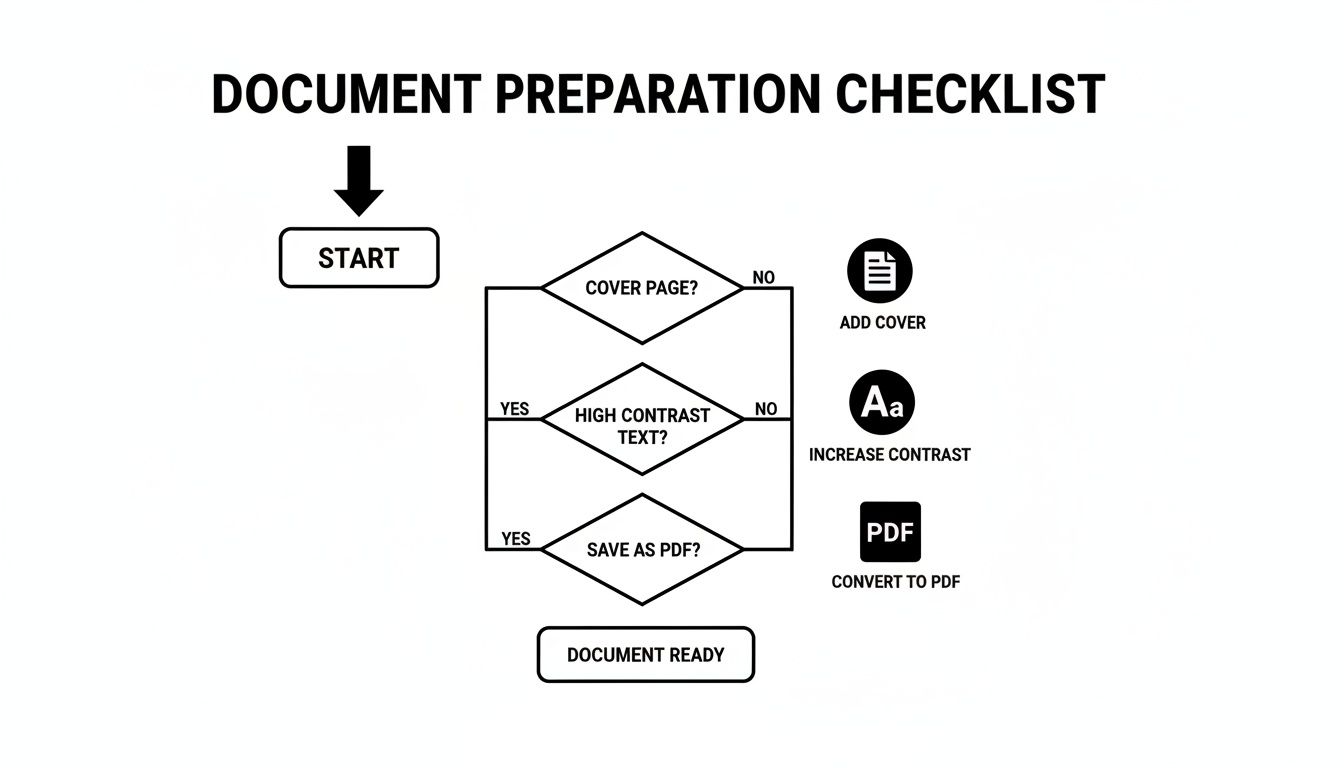
Nailing these three things—a proper cover page, high-contrast documents, and the universal PDF format—is the surest way to guarantee your document arrives looking professional and, most importantly, perfectly readable.
Understanding Security, Compliance, and Cost
Let's be honest: when you're faxing from your computer, you're probably not sending a birthday card. You're handling sensitive stuff—contracts, medical records, or financial statements. That means security isn't just a nice feature; it’s the whole reason you’re using fax in the first place.
Traditional fax machines are surprisingly vulnerable. They send data over unencrypted analog phone lines, which can theoretically be intercepted. This is where modern online fax services have a huge advantage. They use SSL/TLS encryption, the same technology that protects your credit card details when you shop online. It creates a secure, private tunnel for your documents from your computer to the recipient.
Keeping Your Faxes Safe and Compliant
If you work in healthcare, law, or finance, you know that compliance is non-negotiable. Sending protected health information (PHI), for example, requires a HIPAA-compliant service. Simply using any online fax provider won't cut it.
A genuinely HIPAA-compliant service will have several critical safeguards in place:
- Encrypted Data Storage: Your faxes aren't just protected in transit; they're stored securely on the service's servers.
- Strict Access Controls: Robust user authentication ensures that only people who are supposed to see a fax can actually access it.
- A Willingness to Sign a BAA: The provider must offer a Business Associate Agreement (BAA), which is a legal contract required under HIPAA that outlines responsibilities for protecting health data.
Always double-check a service's compliance claims before you send anything sensitive. A mistake here can lead to massive legal headaches and financial penalties. For a detailed rundown of different providers, check out our online fax services comparison.
Breaking Down the Cost of Online Faxing
The price of online faxing can vary quite a bit, so it pays to find a plan that actually matches how you'll use it. Most services use a few common pricing models, each designed for a different type of user. Figuring out which one you fall into is the key to avoiding overage fees or paying for a bunch of pages you'll never use.
Choosing the right plan often makes faxing from a computer far more affordable than owning and maintaining a clunky physical machine.
Comparing Online Fax Service Costs
Here’s a breakdown of typical pricing models to help you find the most cost-effective faxing solution.
| Plan Type | Typical Monthly Cost | Included Pages | Overage Rate (per page) | Best For |
|---|---|---|---|---|
| Pay-Per-Fax | ~$1.99 per fax | Varies (e.g., 25) | N/A | Individuals sending one-off documents like contracts or forms. |
| Monthly Subscription | $10 – $20 | 150 – 500 | $0.05 – $0.10 | Small businesses and professionals with regular, predictable faxing needs. |
| Annual Plan | $100 – $200 per year | Varies widely | $0.03 – $0.07 | High-volume users who can benefit from a bulk discount. |
By thinking about your faxing frequency, you can easily pick a model that makes sense for your budget. If you only send a fax once in a blue moon, a pay-per-fax option gives you that flexibility without locking you into a monthly bill.
Troubleshooting Common Computer Faxing Issues
Even with the most reliable online fax services, you're bound to run into a snag every now and then. It happens. The good news is that most of these problems are incredibly simple to fix once you know what to look for. So, before you get frustrated, let's walk through a few quick troubleshooting steps to get your document on its way.
Transmission failures are easily the most common headache. You’ve uploaded your document, hit send, and then a few minutes later, you get that dreaded notification: "Fax Failed." Nine times out of ten, this isn't an issue with the service you're using, but something on the receiving end.
Diagnosing a Failed Fax
When a fax fails to send, your confirmation email will usually give you a specific error code or message. Learning to decode these is the key to solving the problem.
- Busy Signal: This is the one you'll see most often. It means exactly what it sounds like—the recipient's fax machine was already busy, either sending or receiving another document. The fix is simple: just wait about 10-15 minutes and try sending it again.
- No Answer: This error means the fax machine on the other end didn't pick up the call. It could be turned off, out of paper, or maybe even unplugged. Your first move should be to double-check that you dialed the right number. If you're sure you have it right, it might be worth contacting the recipient to make sure their machine is online and ready to go.
- Communication Error: This is a catch-all message for a fuzzy connection. It could be static on the phone line or a temporary network hiccup between the service and the receiving machine. Just like with a busy signal, the best plan is usually to wait a few minutes and resend.
Pro Tip: Before you hit "resend," always, always double-check the fax number you typed in. I've seen it happen countless times—a single wrong digit is the culprit. It’s such an easy mistake to make, but thankfully, it's just as easy to fix.
Solving Document Quality Problems
What if the fax goes through, but the person on the other end says it looks blurry, skewed, or totally unreadable? This almost always points back to the quality of the file you uploaded, not the fax transmission itself.
Remember, faxing is an old-school, black-and-white technology at its core. It doesn't handle shades of gray, complex images, or low-resolution files very well.
To make sure your faxes arrive looking sharp and professional, here’s what I recommend:
- Start with a good source file. If you’re scanning a paper document, set your scanner to at least 300 DPI (dots per inch) and, critically, scan it in black and white mode, not grayscale or color.
- Keep it high-contrast. Stick with standard, clean fonts (like Arial or Times New Roman) in black text on a plain white background. Avoid using colored text, fancy watermarks, or shaded table cells, as they often turn into a garbled mess.
- Convert to PDF first. While most services accept JPEGs, Word docs, and other formats, PDF is the gold standard for faxing. It locks in all your formatting, so what you see on your screen is exactly what gets transmitted.
Finally, what if you never get a confirmation email at all—success or failure? The first place to check is your spam or junk folder. If it's not hiding in there, you might have had an issue with the file upload itself. Make sure you didn't accidentally attach an unsupported file type, like a spreadsheet or a video file, and then try sending it one more time.
Have Questions About Computer Faxing? We Have Answers.
It's completely normal to have a few lingering questions when you're moving from a physical machine to faxing from your computer. We get them all the time. Let's clear up some of the most common ones so you can feel confident sending your documents.
Can I Get Faxes on My Computer, Too?
Yes, you absolutely can. When you sign up for most online fax services, you're assigned your own dedicated fax number.
When someone sends a fax to that number, the service acts as a digital mailroom. It catches the transmission, converts it into a PDF, and sends it directly to your email inbox. Some services even have a secure online dashboard where all your received faxes are stored, so you can access them anytime without sifting through paper.
Do I Still Need a Phone Line?
Nope! If you're using an online fax service, you do not need a phone line. This is one of the biggest benefits. The entire process happens over your internet connection, so you can finally get rid of that extra landline you were keeping just for the fax machine.
The only time you'd need a physical phone line is if you were going the old-school route with a fax modem plugged into your computer—a method that's pretty much a relic these days.
Is It Secure to Send Sensitive Documents This Way?
In most cases, it’s actually more secure than a traditional fax machine sitting in an open office. Reputable online fax services use robust encryption (like SSL/TLS) to scramble your data as it travels from your computer to its destination, keeping it safe from prying eyes.
When dealing with things like medical records, legal documents, or financial information, security is non-negotiable. For these situations, make sure you choose a service that is explicitly HIPAA compliant. These services add extra security layers, like end-to-end encryption and secure file storage, to meet strict regulatory standards.
Can I Send a Fax From My Phone?
Definitely. The best online fax services have dedicated mobile apps for both iOS and Android, which makes faxing on the move a breeze.
With a good mobile app, you can:
- Pull documents directly from your phone's storage or cloud drives like Google Drive and Dropbox.
- Snap a picture of a paper document with your phone’s camera and instantly turn it into a high-quality file ready for faxing.
- Send your fax from anywhere you have a signal—whether you’re on Wi-Fi or cellular data.
Ready to see just how easy it is? With SendItFax, you can send secure faxes to the U.S. and Canada right from your browser—no account needed. Give it a try and send your first fax in minutes. Get started with SendItFax.
Related Posts
Mobile Fax Service: A Complete 2026 Guide for Your Phone
Best Free Fax App: Top 10 Services for 2026